Configuring a NAT Gateway VXC
For each VXC connected to a Megaport NAT Gateway (NAT Gateway), you can configure one or more interfaces, IP addresses, BGP connections, or static routes. You can also select a NAT source IPv4 address and specify the IP MTU value.
For information about creating a new connection from a Megaport NAT Gateway, see Creating a NAT Gateway VXC.
Depending on the VXC destination or cloud service provider, the NAT Gateway connection settings might have been auto-configured during VXC creation. Follow the steps in this task to configure the connection settings as required.
Note
If the VXC provisioning status is LIVE, CONFIGURED, or DEPLOYABLE, the connection configuration fields are available when editing a VXC, regardless of provider.
To edit a VXC interface
-
Select the NAT Gateway VXC you want to edit.
-
Select the VXC A-End or B-End.
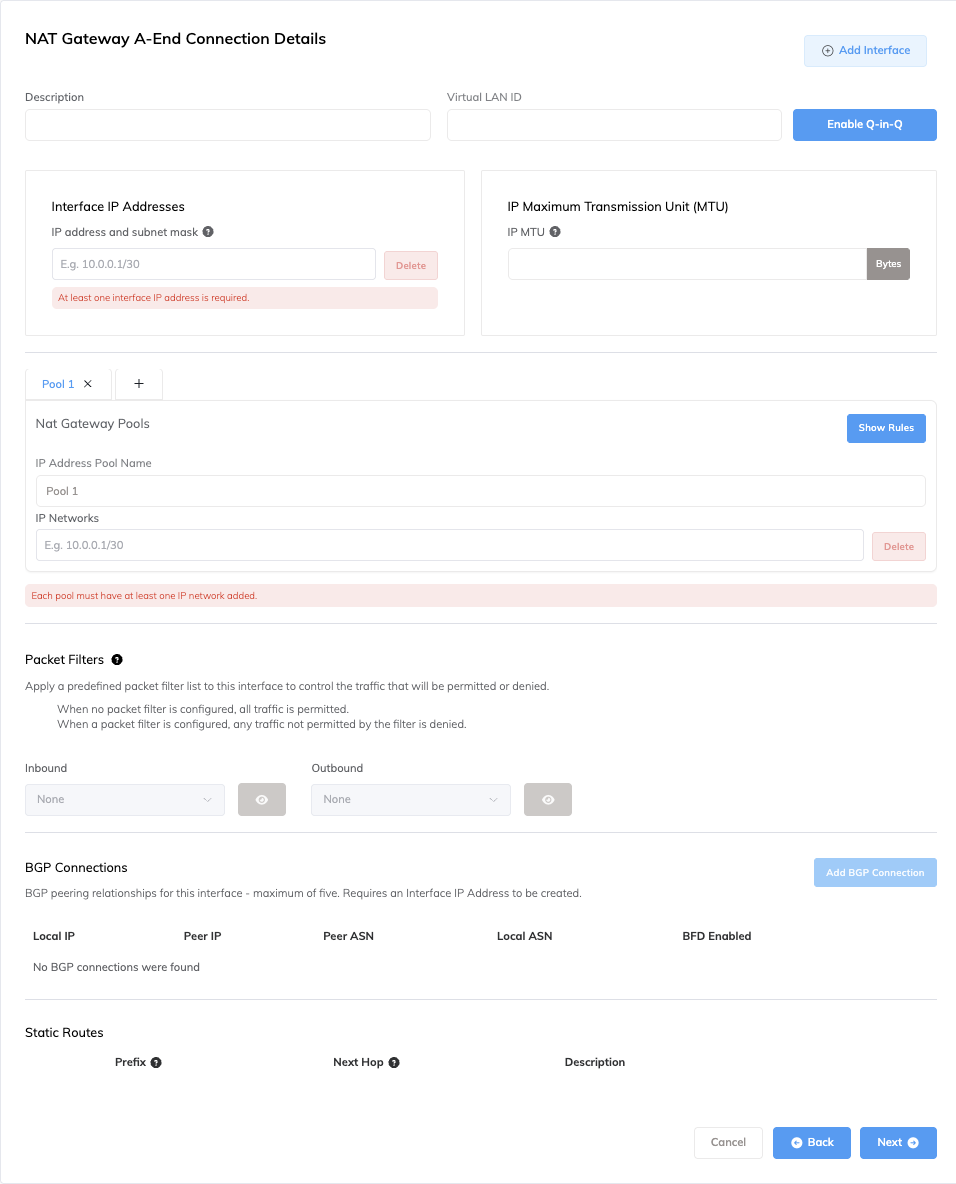
-
Enter a description for the connection.
-
Enter one or more interface IP addresses and subnet masks to configure on the A-End interface.
-
(Optional) Enter an IP MTU (Maximum Transmission Unit)IP MTU (Maximum Transmission Unit) refers to the largest size (in bytes) of an IP packet that can be sent over a network interface (VXC). Jumbo packets are larger than the standard 1500 bytes (MTU), and are typically used in high-performance networks to reduce overhead and improve efficiency.
value (in bytes) for the VXC.
The IP MTU can range from 1280 to 9070 (9074 if Q-in-Q is disabled). The default value is 1500. -
Enter any details specific to the VXC type.
- For more information about using NAT Gateway Pools, see Using NAT Gateway Pools.
- For more information about using packet filters, see Using Packet Filters.
- For more information about adding a BGP connection, see Configuring BGP for Megaport NAT Gateway.
- For more information about enabling Bidirectional Forwarding Detection (BFD) settings, see Enabling the BFD protocol.
- For more information about adding a static route, see Configuring Static Routing on a Megaport NAT Gateway.
-
Click Save.