Creating and Managing Services using the Megaport Terraform Provider
This topic describes the steps to create and manage Megaport services using the Megaport Terraform Provider.
Having learnt the basic knowledge for preparing Terraform configuration files, you are now ready to use the Megaport Terraform Provider to create and manage your Megaport services.
Important
To prevent accidental modification or deletion of production services, we recommend that you test Terraform files in the staging environment first before applying them to the production environment.
Preparing to deploy services with Terraform
To apply changes in the staging environment, confirm that your provider.tf file contains the following configuration.
We recommend that you run the terraform plan command before applying changes, to review your execution plan.
The terraform plan command creates an execution plan, which lets you preview the actions that Terraform will make to your infrastructure.
This plan details exactly what Terraform will do to reach the state defined in your configuration files. You can preview which resources will be created, changed, or destroyed. This allows you to review the proposed changes before they are applied, preventing unexpected or unwanted modifications to your infrastructure.
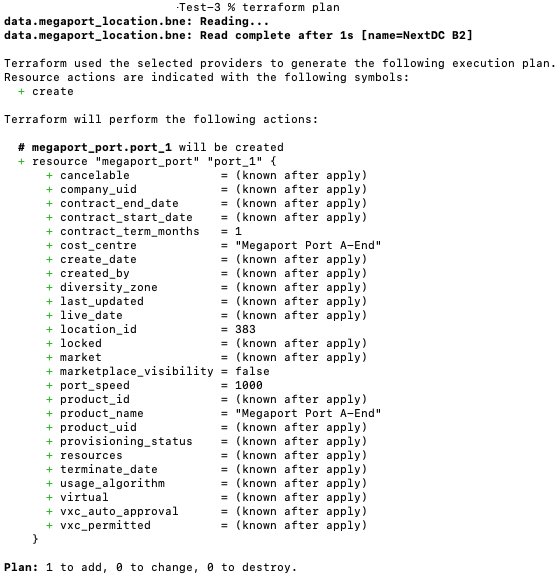
The image below shows an example output running the terraform plan command. In this example, the Terraform configuration file will create a new month-to-month 1 Gpbs Port, named Megaport Port A-End at NextDC B2.
For more information, see terraform plan command (HashiCorp).
Creating test services
After you are satisfied with the changes in the Terraform plan, you can create services in the staging environment using the following command in your terminal.
This command creates new services based on the definition in the Terraform configuration file. See the following example output.
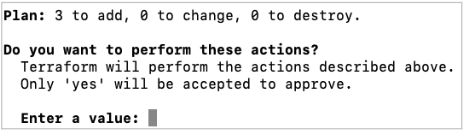
Type yes to confirm.
After you type yes, the Terraform configuration file creates services and an Apply complete! message appears.

After the apply process is complete, view the staging Portal to confirm that the service(s) have been created as designed in the Terraform configuration file.
Changing test services
To modify your services (for example, service name, VXC speed), update the Terraform configuration file ( main.tf ) you initially used. After making the required changes, apply them using the following command. For testing, ensure that you first apply these changes in the staging environment.
Removing test services
After testing, clean up the staging environment by removing the services you created for the test using the following command:
Make sure you are removing services in the staging environment, not in the production environment. See the example output below.

Type yes to confirm.
After you type yes, services defined in the Terraform configuration file will be removed, and a Destroy complete! message appears.
After the destroy process is complete, view the staging Portal to confirm that the services are removed.

Tip
You need to refresh the staging Portal to check that the test services have been removed.
Creating services in production
After you complete testing in the staging environment and are satisfied with the outcome, you can run the terraform apply command in the production environment by specifying the production environment in the provider.tf file.
You need to create an API key in the production environment before running terraform apply. For more information, see API key.
After running the terraform apply command, refresh the Production Portal to check that the services have been created.