Using Webhooks in the Megaport Portal
Webhooks are lightweight, event-driven HTTP callbacks that automatically push real-time data between applications, which allow you to receive real-time notifications when events occur in your Megaport account. You can integrate webhooks with your existing systems, such as monitoring tools, incident response platforms, or custom dashboards.
To enable webhooks, you can create an endpoint URL to which Megaport pushes event data as it
happens.
Note
You must have at least Company Admin or Technical Admin privileges to perform these actions. For more information, see Managing User Roles.
Creating a webhook endpoint
You can create up to 10 webhook endpoints for your company Megaport account. Each endpoint can be configured to receive notifications for specific event types, such as service provisioning, billing updates, or security alerts.
To create a webhook endpoint
-
Visit the Megaport Portal and log in.
-
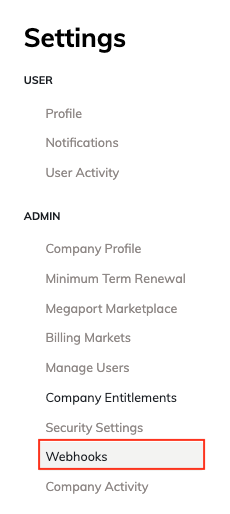
Choose User Menu > Admin > Webhooks.
-
Click + Create Webhook to create a new webhook endpoint.
-
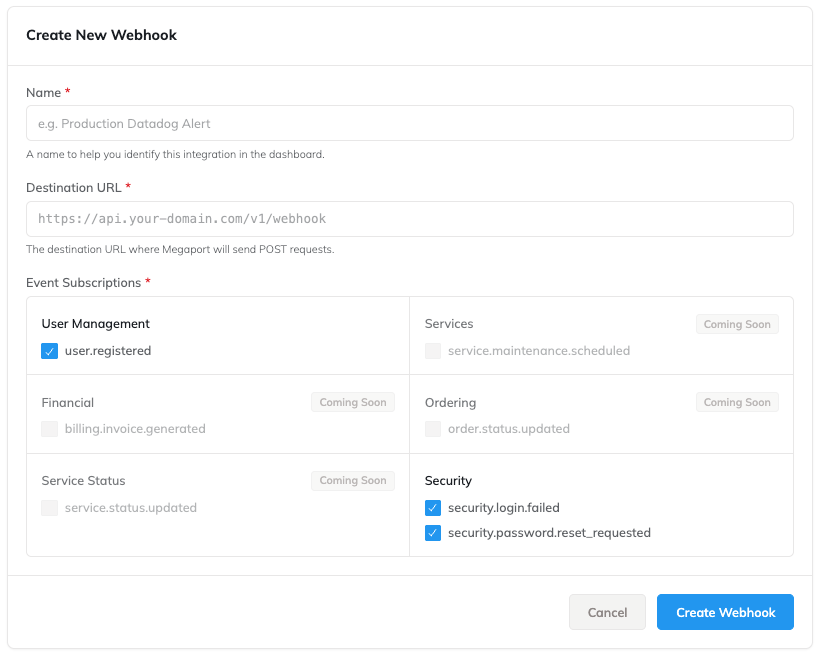
In the Create New Webhook page, enter these details:
- Name – A descriptive name for the webhook endpoint.
-
Destination URL – The endpoint URL where you want to receive event notifications. This should be a publicly accessible URL that can accept POST requests.
The destination URL format must have the following details:- It must use the HTTPS protocol.
- It must be publicly accessible and able to receive POST requests.
- It must be less than 2048 characters in length.
-
Event Subscriptions – Select the specific event types for which you want to receive notifications.
-
Click Create Webhook to save the webhook endpoint.
Testing webhook endpoints
After creating a webhook endpoint, you can test it to ensure that it is correctly configured to receive event notifications.

To test a webhook endpoint
-
Visit the Megaport Portal and log in.
-
Choose User Menu > Admin > Webhooks.
-
In the Webhooks settings page, locate the webhook endpoint you want to test and click Test next to it.
-
On the Test Webhook page, click Send Ping to send a test notification to the webhook endpoint.
The response will show on the page. A successful test will show a Ping sent successfully message. If the test fails, the response will include an error message indicating the reason for the failure.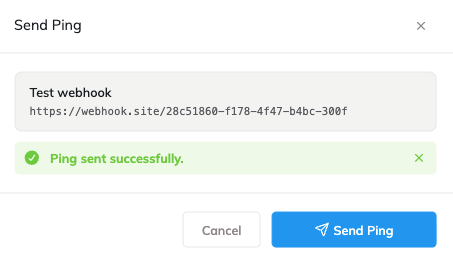
Managing webhook endpoints
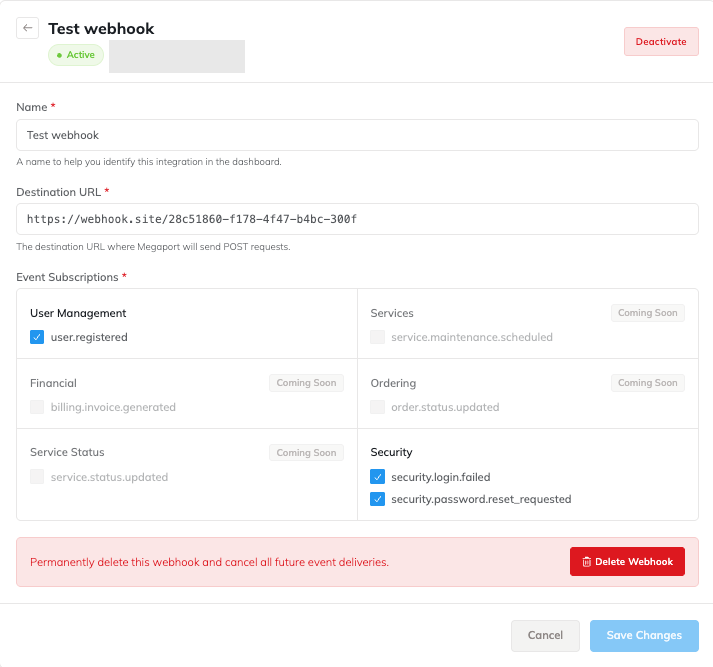
You can manage your webhook endpoints from the Webhooks settings page. This includes editing the endpoint details, updating event subscriptions, and deleting endpoints that are no longer needed.
To edit a webhook endpoint
-
Visit the Megaport Portal and log in.
-
Choose User Menu > Admin > Webhooks.
-
In the Webhooks settings page, locate the webhook endpoint you want to edit and click Edit next to it.
-
In the Edit Webhook page, update the webhook name, destination URL, or event subscriptions as required.
-
Click Save Changes.
To delete a webhook endpoint
-
Visit the Megaport Portal and log in.
-
Choose User Menu > Admin > Webhooks.
-
You can delete a webhook endpoint from the Webhooks settings page by either:
- Clicking Delete next to the endpoint you want to remove, or
- Editing the endpoint and clicking Delete in the Edit Webhook page.
-
In either case, confirm the deletion by clicking Delete in the confirmation prompt.
This will permanently delete the webhook endpoint and stop all notifications from being sent to it.
To disable a webhook endpoint
You can disable a webhook endpoint without deleting it. This will stop all notifications from being sent to the endpoint until you re-enable it.
-
Visit the Megaport Portal and log in.
-
Choose User Menu > Admin > Webhooks.
-
In the Webhooks settings page, locate the webhook endpoint you want to disable and click Edit next to it.
-
In the Edit Webhook page, click Deactivate to disable the webhook endpoint.
-
Confirm the action by clicking Deactivate in the confirmation prompt.
Note
Events occurring while the endpoint is deactivated are not reported. When the endpoint is reactivated, only new events occurring after reactivation are reported.
To re-enable a webhook endpoint
You can re-enable a disabled webhook endpoint to resume receiving notifications.
-
Visit the Megaport Portal and log in.
-
Choose User Menu > Admin > Webhooks.
-
In the Webhooks settings page, locate the disabled webhook endpoint you want to re-enable and click Edit next to it.
-
In the Edit Webhook page, click Activate to re-enable the webhook endpoint.
-
Confirm the action by clicking Activate in the confirmation prompt.
Consuming webhook events
When an event occurs that matches the subscriptions of a webhook endpoint, Megaport sends a JSON POST request to the endpoint’s destination URL.
The request includes a JSON payload containing details about the event, such as the event type, timestamp, and relevant data.
For more information about the fields included in the data object for each event type, see the Webhooks API Event Reference.
JSON payload structure
The structure of the JSON payload will vary depending on the event type. For more information about the fields included in the data object for each event type, see the Webhooks API Event Reference.
HTTP headers
Each webhook event delivery includes the following HTTP headers:
| Header | Description | Example |
|---|---|---|
| webhook-id | Unique identifier for this delivery (UUID) | d4f5a6b7-c8d9-4e0f-a1b2-c3d4e5f6a7b8 |
| webhook-timestamp | Unix timestamp in seconds when the delivery was sent | 1736942400 |
| Content-Type | Always application/json | application/json |
Retrying failed deliveries
If a webhook delivery fails due, for example, to a network error or a non-2xx HTTP response, Megaport will automatically retry the delivery with an exponential backoff strategy. The retries will continue for up to 24 hours after the initial delivery attempt.
After 7 total attempts (1 initial + 6 retries), the delivery is marked as failed and no further retries are attempted.
A delivery is considered successful when your endpoint responds with any 2xx status code (200-299).
Retry Schedule
| Attempt | Delay after failure |
|---|---|
| 1st retry | 30 seconds |
| 2nd retry | 5 minutes |
| 3rd retry | 30 minutes |
| 4th retry | 2 hours |
| 5th retry | 8 hours |
| 6th retry | 24 hours |
Webhook best practices
Respond quickly
Return a 200 OK response within 5 seconds. We recommend acknowledging the webhook first and processing the payload in the background (asynchronously). If your endpoint fails to respond within the 5-second timeout, Megaport will mark the delivery as a failure and trigger a retry.
Prevent duplicate events
The webhook-id header uniquely identifies each delivery. Store processed webhook IDs and check for duplicates before processing. Network issues or retries can result in the same event being delivered more than once.
def handle_webhook(request):
    webhook_id = request.headers["webhook-id"]
    if already_processed(webhook_id):
        return 200  # acknowledge but skip processing
    process_event(request.body)
    mark_processed(webhook_id)
    return 200
Reject stale deliveries
Use the webhook-timestamp header to block old messages. We recommend a 5-minute window to account for slight time differences between servers. This also protects your system from replay attacks, which occur when an attacker tries to resend an old intercepted message.
import time
def validate_timestamp(request):
    timestamp = int(request.headers["webhook-timestamp"])
    now = int(time.time())
    if abs(now - timestamp) > 300:  # 5 minute tolerance
        return 400  # reject stale delivery
Ignore unknown fields
Ensure your endpoint stays compatible with future payload updates. Megaport only adds new fields and never removes or changes existing ones.
Use HTTPS only
Your endpoint URL must use HTTPS. This ensures the payload is encrypted in transit. HTTP endpoints are rejected at registration time.
Return appropriate status codes
| Your response | Megaport behavior |
|---|---|
| 2xx | Delivery marked as successful |
| 3xx | Treated as failure, redirects are not followed |
| 4xx | Treated as failure, will retry |
| 5xx | Treated as failure, will retry |
Keep your endpoint available
Ensure your endpoint can handle your expected event volume and remains online consistently. If your endpoint is down or consistently returns errors, you might miss critical notifications about your Megaport account.
If your endpoint is consistently unreachable, deliveries will exhaust all retry attempts and be marked as failed. Monitor your endpoint’s availability and check the Megaport portal for delivery failures.