Configuring BGP for Megaport NAT Gateway
Border Gateway Protocol (BGP) is a standardized routing protocol designed to exchange route and reachability information among autonomous systems (AS) on the internet. You can enable BGP on VXC connections from your NAT Gateway to automatically propagate route changes to connected ports, eliminating the need for manual route management.
Configuring BGP
You can enable BGP on VXC connections from your NAT Gateway, with up to five BGP peers per VXC interface and five interfaces per VXC.
To configure BGP
-
In the Megaport Portal, go to the Services page.
-
Select the VXC, then select the NAT Gateway A-End or B-End.
-
Click Add BGP Connection.
-
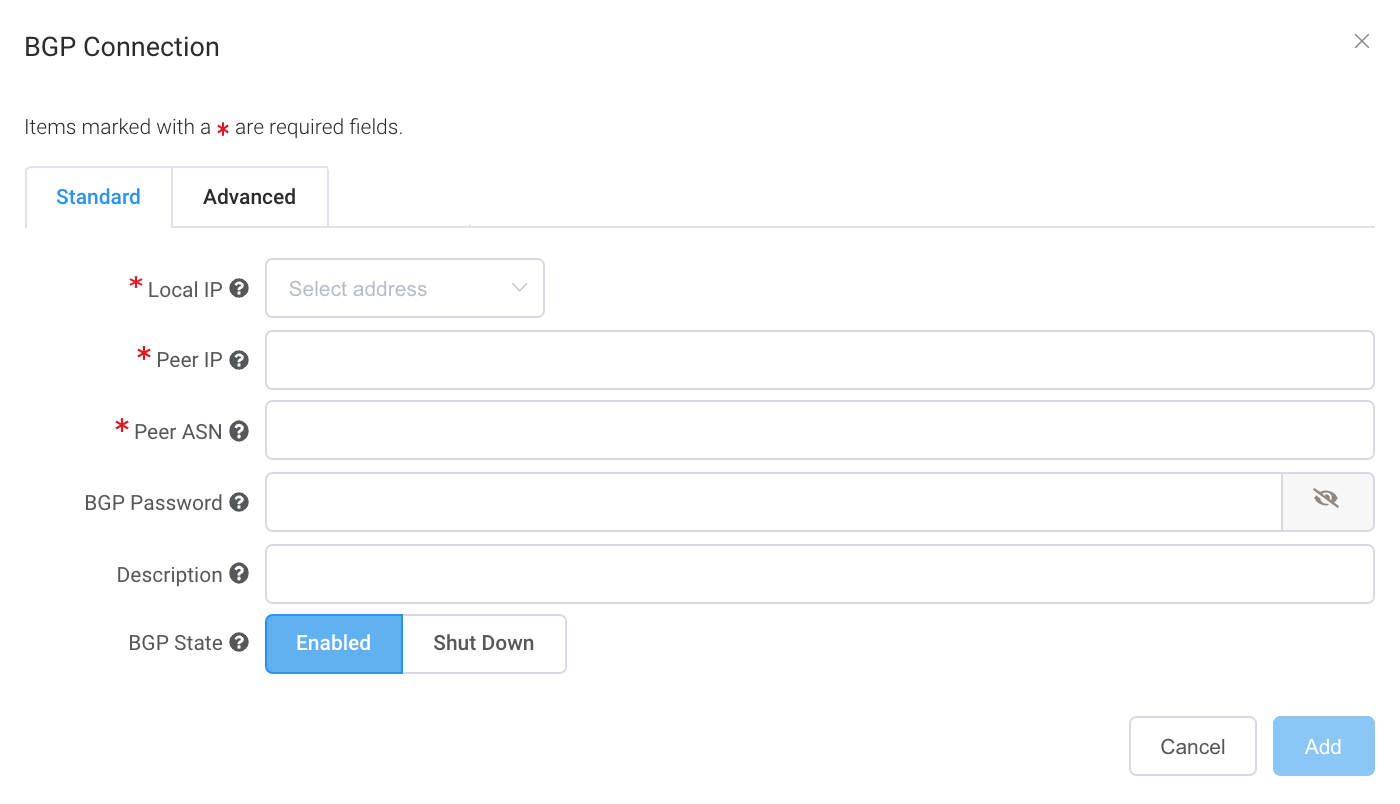
Specify these values:
-
Local IP – Select the IP address on this interface that communicates with the BGP peer. The drop-down menu is auto-populated based on the interface IP addresses you provided on the Connection Details page.
-
Peer IP – Specify the IP address for the BGP peer. For example, if the local IP is 198.162.100.1, the peer IP address would be 198.162.100.2.
-
Peer ASN – Specify the ASN of the target routing device that will terminate the BGP connection. The ASN range is from 2 to 4294967294. 4-byte ASNs are supported in the asplain format.
-
BGP Password (optional) – The shared key to authenticate the BGP peer. A shared key is optional when creating the VXC, but is required to set up the BGP peering. You can add it after you create the VXC. The shared key length is from 1 to 25 characters. The key can include any of these characters:
- a-z
- A-Z
- 0-9
- Special characters: ! @ # . $ % ^ & * + = - _
Tip
Click the eye icon to see the password as you type. The view persists until you click the eye icon again to hide the password.
-
Description (optional) – Enter a description that will help identify this connection. The description length can range between 1 and 100 characters.
-
BGP State – Shuts down the connection without removing it. The initial setting will be taken from the setting on the A-End of the NAT Gateway. Enabling or shutting down the BGP state does not affect existing BGP sessions. The BGP state only affects new VXCs. This setting overrides the NAT Gateway state for an individual connection. For more information, see Shutting down a BGP connection and Creating a NAT Gateway.
Note
- If you have entered multiple CIDR ranges, the IP addresses are available for selection.
- Use a CIDR calculator to ensure that all data is valid and within range.
-
-
Click Add.
-
Click Next.
Editing a BGP connection
You can edit existing BGP connections, including the IP addresses, peer ASN, BGP password, description, BGP state, and advanced settings, such as route filters.
To edit a BGP connection
- Select the VXC, then select the NAT Gateway A-End or B-End.
- Under BGP Connections, click Edit next to the BGP connection you want to edit.
- Make your changes.
- Click Update.
- Click Save.
For information about the BGP Advanced tab settings, see Configuring Advanced BGP Settings. For information about the BGP Filters tab settings, see Megaport NAT Gateway Route Filtering.
Verifying the BGP configuration
After you configure BGP, verify that the BGP session is up and that BGP is advertising and receiving routes as expected.
To view the BGP status
- In the Megaport Portal, go to the Services page.
- Select the VXC.
- Choose Details.
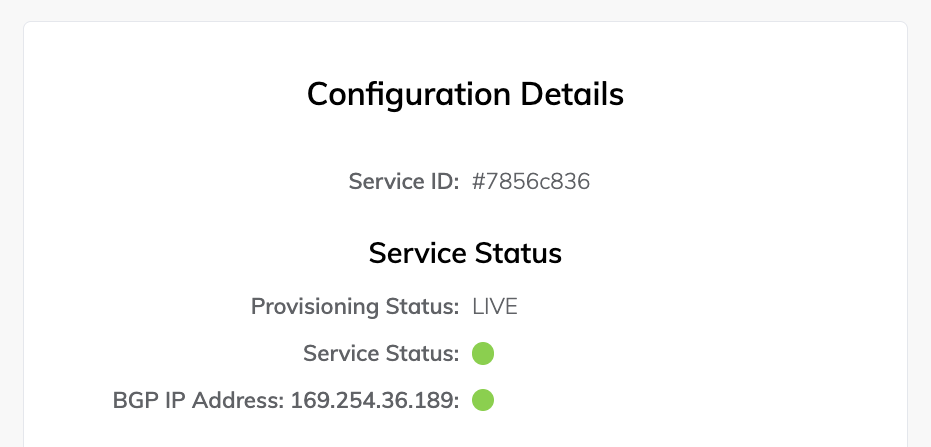
The Configuration Details page shows the provisioning, service, and BGP status.
Troubleshooting BGP
If the Services > Connection Details page displays a status issue, verify these items:
- Select the VXC, then select the NAT Gateway A-End or B-End.
- Under BGP Connections, verify that the correct local ASN is in use for the A-End of the VXC.
- Verify that the correct Peer IP address is in use.
- Verify that the correct BGP MD5 password is in use for the A-End of the VXC.
If the BGP configuration looks correct:
-
Make sure that a BGP peer is not blocking ingress or egress from TCP port 179 (BGP) and other relevant ephemeral ports.
-
Verify that a BGP peer is not advertising more than 100 prefixes to AWS. The maximum number of advertised routes to AWS is 100. The BGP session is disabled if it exceeds the prefix limit of 100 advertised routes.
Shutting down a BGP connection
Use this setting to temporarily disable the BGP session without removing it. BGP shutdown provides a way to administratively shut down a BGP connection while setting up a new route, performing maintenance, troubleshooting, and so on.
To temporarily disable a BGP connection
-
In the Megaport Portal, go to the Services page.
-
Select the VXC, then select the NAT Gateway A-End or B-End.
-
Under BGP Connections, click Shut Down next to the BGP connection you want to disable.
-
Click Yes to confirm.
Setting up NAT Gateway BGP notifications
You can receive email notifications whenever a Border Gateway Protocol (BGP)Border Gateway Protocol (BGP) is a standardized routing protocol designed to exchange route and reachability information among autonomous systems (AS) on the internet.
session status changes on your NAT Gateway. These changes can include a BGP going up, down, or flapping. If a session is flapping, only one email per hour will be sent.
You can opt in or out of receiving these email notifications.
NAT Gateway BGP notifications email specifications
The NAT Gateway BGP notification system is designed to provide timely notifications for BGP up, down, or flapping events while minimizing alert noise.
The notification system implements rate limiting for rapidly changing status, as described below.
- The initial notification is sent immediately.
- Subsequent events within one hour are suppressed.
- The email body will indicate if the event has repeated during the suppression period.
To receive BGP email notifications
- Visit the Megaport Portal and log in.
- Choose User Menu > User Settings > Notifications.
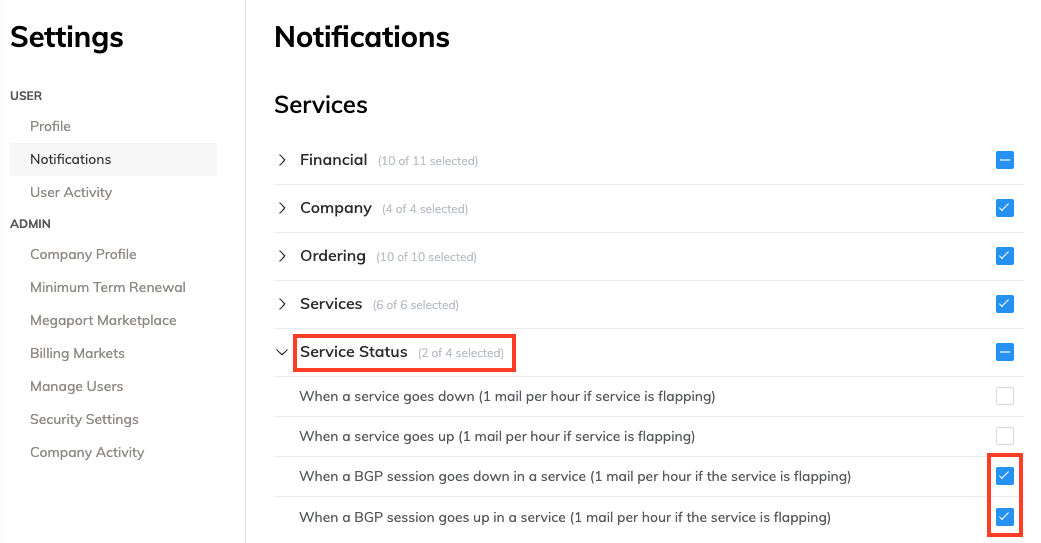
- Click the Service Status notification group to view the BGP email notification types.
- Select the notification group check box to subscribe to all notifications in that group, or subscribe to individual notification types. Any notification subscription changes are automatically saved.