Monitoring NAT Gateway
This topic describes how to view service logs and usage reports for a Megaport NAT Gateway (NAT Gateway) in the Megaport Portal. This information helps you troubleshoot issues and monitor the status, activity, and performance of your NAT Gateways.
Megaport offers a public API that you can use to access the services available available through the service logs and usage reports. For more information, see Megaport API Overview.
Viewing service logs
Viewing the service logs is a simple way to monitor the activity and performance of your NAT Gateways. Megaport starts reporting metrics as soon as the NAT Gateway is live in the Megaport Portal.
You can also monitor the VXCs and BGP peering on NAT Gateway services, such as BGP session down, BGP authentication failure, and so on.
To view service logs for a NAT Gateway
- Log in to the Megaport Portal and choose Services.
- Click the gear icon next to the NAT Gateway.
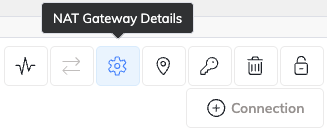
- On the NAT Gateway Details page, click Logs.
The 100 most recent events are displayed, including the time zone of the log entries. The standard time zone formatting for NAT Gateway log messages is UTC. - To view VXC and BGP events, click the gear icon next to the VXC and click Logs on the Connection Details page.
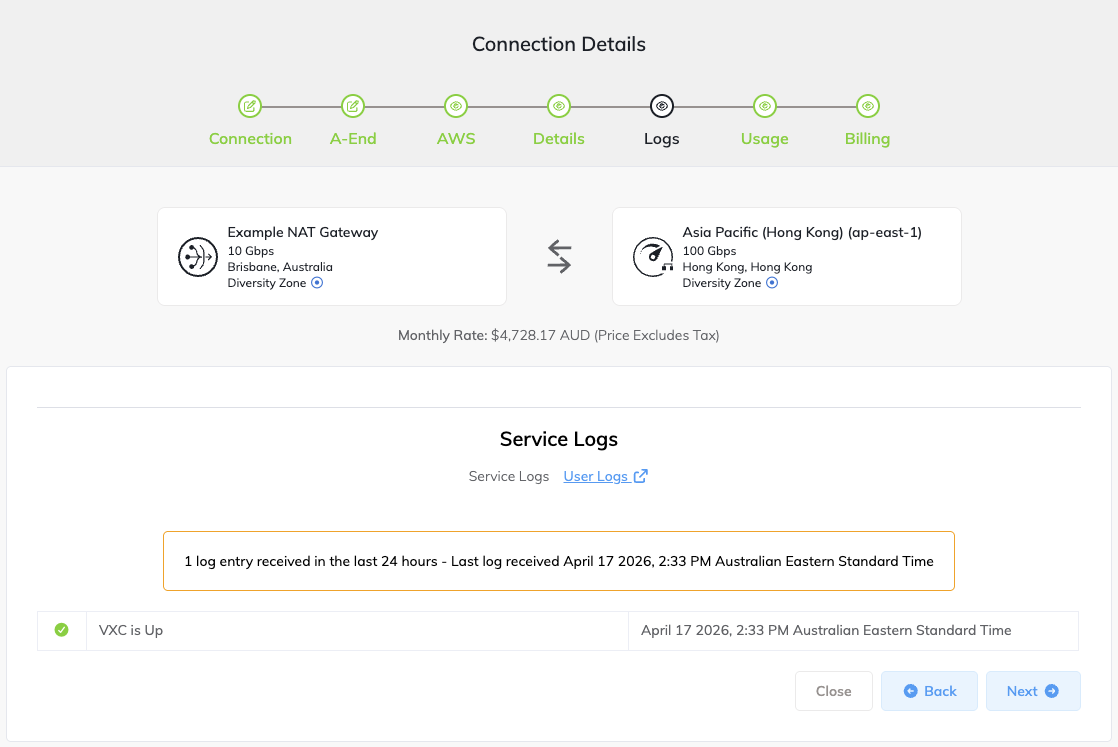
A green check mark indicates that the service is running as expected, or shows a non-critical event such as a speed change. A yellow warning icon indicates that there is a potential issue with the service.
Note
Company Admins see an additional Activity Logs tab next to Service Logs. The Activity Logs tab displays user activity for the NAT Gateway, such as configuration changes and other administrative actions. For more information about activity logs, see Viewing Activity Logs.
Tip
For more information about investigating NAT Gateway issues, see Troubleshooting a NAT Gateway Routing Issue.
Viewing usage details
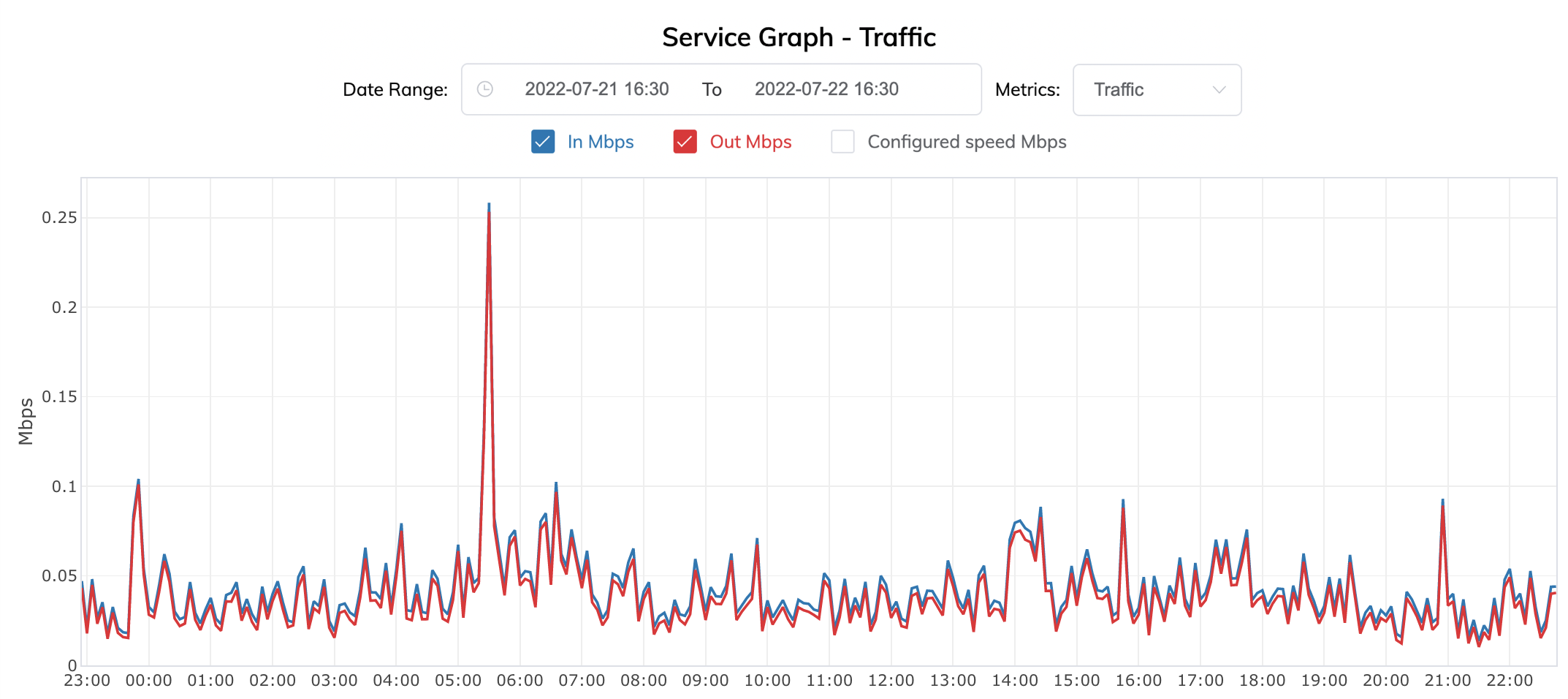
The Service Graph provides helpful information such as inbound/outbound traffic and packet rates. The graph is useful for comparing monthly usage on a NAT Gateway. You can export the NAT Gateway usage data in comma-separated values (CSV) format for analysis in spreadsheets and databases.
You can access a Service Graph from these locations:
-
From the Services page, click the gear icon, then select Usage. You will see a Service Graph for the selected service only.
-
From Tools > Service Telemetry. This page shows usage for multiple services. You can filter the information for a specified date range and select a metric to display. For more information, see Monitoring Services using the Service Telemetry Page.
Note
The Service Graph is updated every 5 minutes.
To view usage details for an individual NAT Gateway
- Log in to the Megaport Portal and choose Services.
- Click the gear icon next to the NAT Gateway.
- On the NAT Gateway Details page, click Usage.
The Service Graph page appears, showing traffic by default.
-
In the Date Range field, enter the range of dates for which to view usage details. You can enter the date range manually using the date picker or select from the following options:
- Last hour
- Last 12 hours
- Last 24 hours
- Last week
- Last month
- Last 3 months
The default time range is the last 24 hours.
-
In the Metrics drop-down list, select a metric for which to view usage details.
You can view a graph for one metric at a time.Metric Description Packets In pps - Incoming packet rate to the NAT Gateway, measured in packets per second.
Out pps - Outbound packet rate from the NAT Gateway, measured in packets per second.Traffic In Mbps - Number of inbound Megabits per second.
Out Mbps - Number of outbound Megabits per second.
Configured Speed Mbps - Configured speed of the NAT Gateway, in Megabits per second.You can customize the graph by selecting or clearing the check boxes for In Mbps, Out Mbps, and Configured Speed to show or hide data.
Use the mouse to hover over a specific data point to see the values and exact timestamp.
-
Click Export CSV to download the displayed NAT Gateway usage data in CSV format.
You can use the CSV file to import the data into spreadsheets and databases. You can open the CSV file in any text editor. -
Click UTC or your local time zone to change the time zone.
For more information about usage information and service logs, see Monitoring Ports, VXCs, Megaport Internet, and IXs. For billing information for NAT Gateway VXCs, see VXC, Megaport Internet, and IX Billing.