Configuring Advanced BGP Settings
This topic describes how to manage advanced Border Gateway Protocol (BGP) settings in the Megaport NAT Gateway (NAT Gateway).
Overriding the NAT Gateway ASN
The default ASNAn autonomous system (AS) is a collection of connected Internet Protocol (IP) routing prefixes under the control of one or more network operators on behalf of a single administrative entity or domain. ASN refers to autonomous system number and is a unique numerical ID allocated to each AS for use in BGP routing.
assigned to the NAT Gateway is 133937. For most configurations, the default ASN is appropriate. Optionally, you can specify another local ASN to override the default ASN on a per-peer basis.
Important
Cloud service providers (CSPs) can have restrictions on the ASN value. See the documentation for your CSP before overriding the default value.
To override the NAT Gateway ASN
-
In the Megaport Portal, go to the Services page.
-
Select the VXC and select the NAT Gateway A-End or B-End.
-
Next to the BGP connection, click Edit.
-
Select the Advanced tab.
-
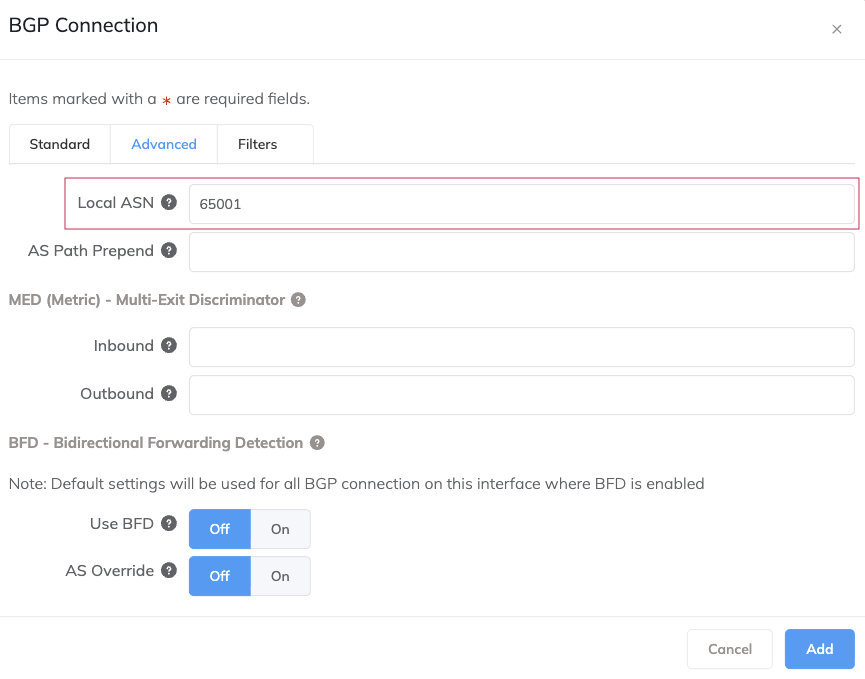
In the Local ASN field, specify a public or private ASN (for example, specify a number from 64512 to 65534).
The ASN range is from 2 to 4294967294, but the following ASNs are reserved:
- 8074, 8075, 12076, 65515 - 65520 (reserved in Azure)
- 23456, 64496-64511, 65535 - 65551 (reserved by Internet Assigned Numbers Authority (IANA))
-
Click Update.
- Click Save.
Setting route advertisement priority with ASN prepend
The ASNAn autonomous system (AS) is a collection of connected Internet Protocol (IP) routing prefixes under the control of one or more network operators on behalf of a single administrative entity or domain. ASN refers to autonomous system number and is a unique numerical ID allocated to each AS for use in BGP routing.
path length determines the route advertisement priority for outgoing BGP paths. The route with the shortest AS path has the highest preference, and it is preferred over any longer path advertisements. Longer path lengths have a lower priority. AS path prepending lengthens the path to lower the path priority.
Setting an ASN prepend value is optional.
To set the path advertisement priority on an existing BGP connection
- In the Megaport Portal, go to the Services page.
- Select the VXC and select the NAT Gateway A-End or B-End.
- Next to the BGP connection, click Edit.
-
Select the Advanced tab.
-
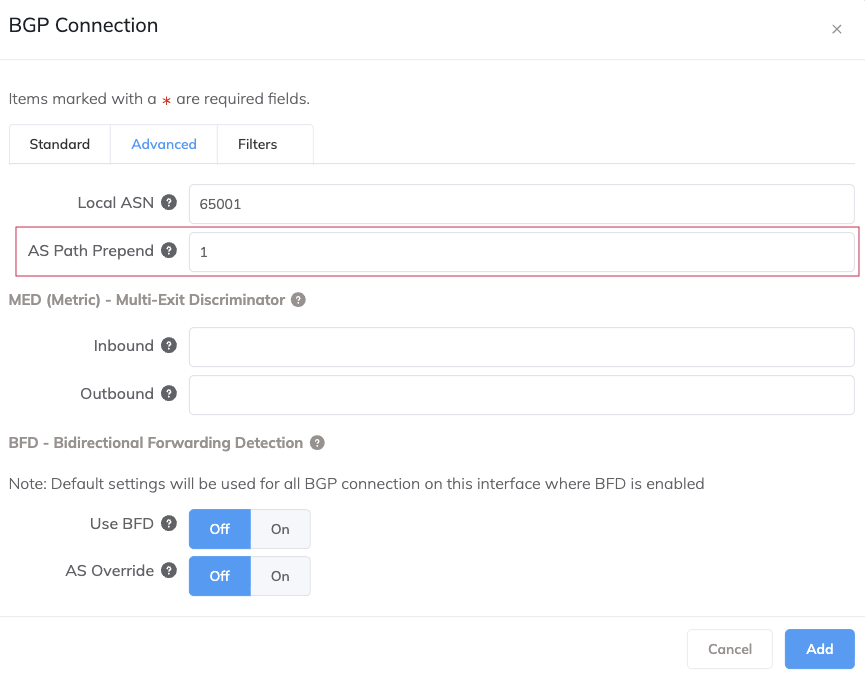
In the AS Path Prepend field, specify the number of additional times to add the local ASN to the BGP path. You can specify an integer from 1 to 10. For example, an AS path prepend value of 2 prepends the ASN to the existing AS path twice, creating an AS path length of 3. Higher numbers deprioritize the path.
- Click Update.
- Click Save.
To set the path advertisement priority on a new BGP connection
- Add a new BGP connection.
- Select the Advanced tab.
- In the AS Path Prepend field, specify the number of additional times to add the local ASN to the BGP path. You can specify an integer from 1 to 10. For example, an AS path prepend value of 2 prepends the ASN to the existing AS path twice, creating an AS path length of 3. Higher numbers deprioritize the path.
- Click Add.
- Click Save.
Enabling the BFD protocol
BGP shares network reachability information with adjacent BGP systems, which are referred to as neighbors or peers. The BFDBidirectional Forwarding Detection (BFD) is a network fault detection protocol that detects any path failures between directly connected BGP neighbors. It provides fast failure detection times, which facilitates faster re-convergence time for dynamic BGP routing protocols. It is independent of media, routing protocol, and data.
protocol runs independent of BGP and detects path failure between directly connected BGP neighbors, allowing for a faster BGP routing re-convergence time.
BGP sends keepalive messages at regular intervals to maintain the BGP session. If a BGP neighbor doesn’t receive a keepalive message within the specified BGP timer interval, the BGP session is torn down and failover occurs to another BGP neighbor.
BFD provides a faster method for detecting path failure between directly connected BGP neighbors. BFD sends control messages at regular, shorter intervals to maintain the BFD session. If a BFD neighbor doesn’t receive a control message within the specified BFD timer interval, the BFD session is torn down and notifications are sent to the BGP process, which then tears down the BGP session and fails over to another BGP neighbor.
When you enable BFD, the system automatically applies these fixed settings:
- Transmit IntervalThe minimum time that the BGP neighbor transmits liveness detection BFD packets to the BGP neighbor.
: 300 milliseconds - Receive IntervalThe minimum time that the BGP neighbor sends liveness detection BFD packets to the interface.
: 300 milliseconds - MultiplierThe minimum number of BFD packets that can be missed before the BGP session is considered down.
: 3
Note
These settings apply to all BGP connections on the VXC where BFD is enabled.
To enable BFD
-
In the Megaport Portal, go to the Services page.
-
Select the VXC and select the A-End or B-End.
-
Next to the BGP connection, click Edit.
-
Select the Advanced tab.
-
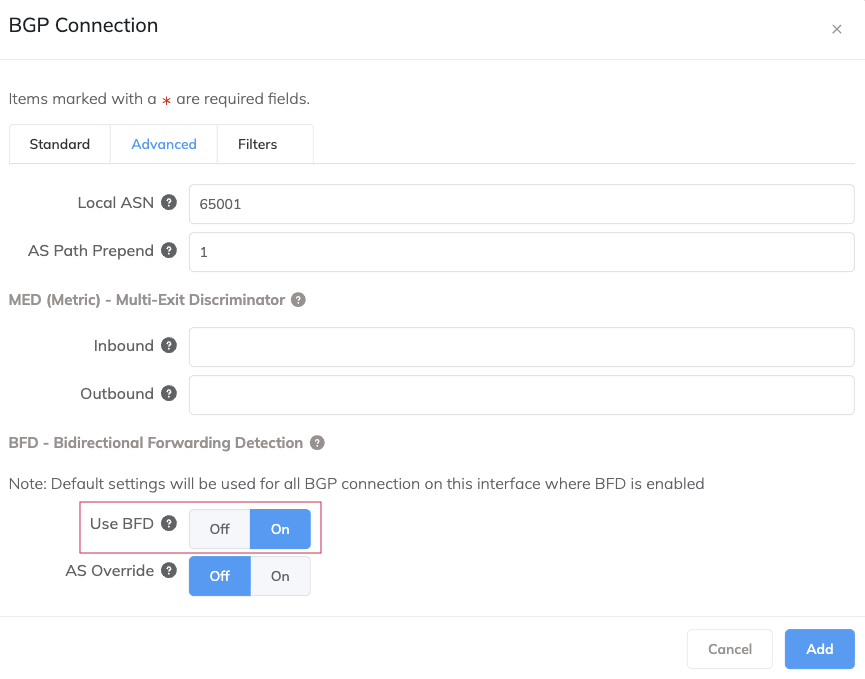
Next to the Use BFD field, click On.
-
Click Update.
- Click Save.
Important
You must enable BFD on the BGP neighbor as well.
Default BFD values by Cloud Service Provider (CSP)
-
AWS Direct Connect – BFD is supported natively by AWS Direct Connect connections. AWS automatically enables asynchronous BFD for virtual interfaces. However, you must enable BFD on NAT Gateway VXCs to AWS Direct Connect for your connection.
By default, the AWS BFD liveness detection minimum interval is 300 milliseconds and the multiplier is 3 packets.
Note
Confirm support for other neighbors with your CSP, as well as specific default values.
-
Azure ExpressRoute – BFD is supported natively by Azure ExpressRoute on private peering. Azure configures BFD by default for all newly created ExpressRoute private peering interfaces on the Microsoft Enterprise Edge (MSEE). You must configure the NAT Gateway VXCs to Azure ExpressRoute private peering for BFD to enable it for your connection. Between BFD peers, the slowest peer determines the transmission rate.
-
Microsoft Enterprise Edge (MSEE) ExpressRoute routers – MSEE ExpressRoute routers have BFD transmit and receive intervals of 300 milliseconds.
-
Google Cloud Services – You can enable and configure BFD on Google Cloud Partner Interconnects. For more information, see the Google Cloud documentation to Configure BFD for Cloud Router.
Enabling AS Override
Each participant in a BGP session is identified by an AS number (autonomous system number). BGP has a built-in mechanism for preventing routing loops; if a router receives a route that already contains its own AS number in the path, the router rejects it.
When you enable AS Override, the NAT Gateway replaces the peer’s AS number with its own in the route advertisement, bypassing the loop-detection check of the downstream device.
For example, a company has two sites (New York and London) that use the same AS number (AS 65001) and are connected through a NAT Gateway (AS 100):
- The New York site (AS 65001) advertises a route to the NAT Gateway (AS 100).
- The NAT Gateway (AS 100) passes that route to the London site.
- The London router (AS 65001) sees AS 65001 in the AS_PATH and rejects the prefix.
In the same scenario with AS Override enabled:
- The New York site (AS 65001) advertises a route to the NAT Gateway (AS 100).
- The NAT Gateway (AS 100) passes that route to the London site. The NAT Gateway replaces AS 65001 with AS 100 in the AS_PATH.
- The London router (AS 65001) sees AS 100 in the AS_PATH and accepts the prefix because it doesn’t match its own AS number.
Note
You can only enable AS override on eBGP (external BGP) connections, where the Peer ASN and Local ASN are different. You cannot apply AS override to iBGP (internal BGP) connections, where the Peer ASN and Local ASN are the same.
To enable AS override
- In the Megaport Portal, go to the Services page.
- Select the VXC, then select the A-End or B-End.
- Next to the BGP connection, click Edit.
- Select the Advanced tab.
-
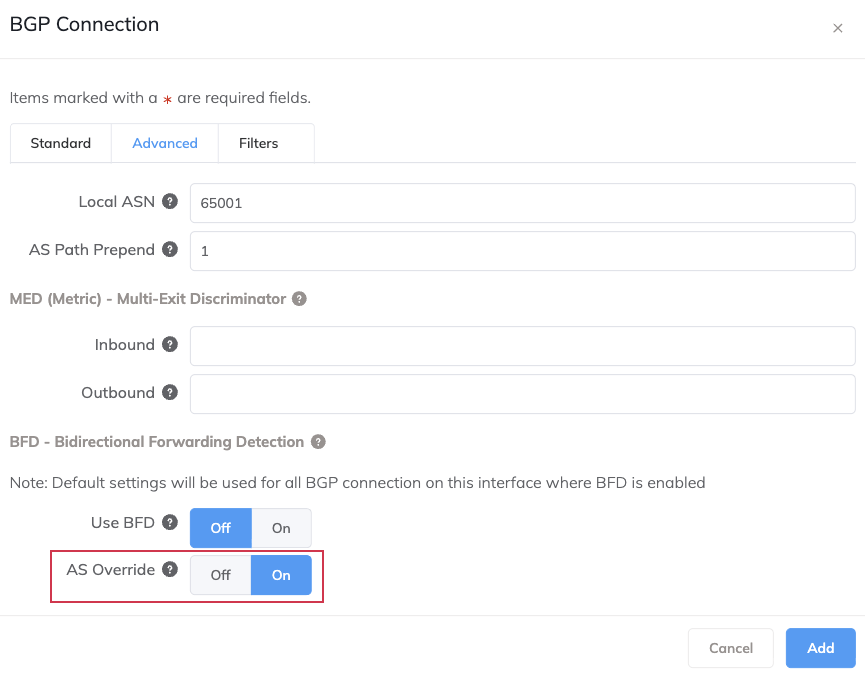
Next to AS Override, click On to enable it.
-
Click Update.
- Click Save.
To disable AS override
- In the Megaport Portal, go to the Services page.
- Select the VXC, then select the A-End or B-End.
- Next to the BGP connection, click Edit.
- Select the Advanced tab.
- Next to AS Override, click Off to disable it.
- Click Update.
- Click Save.
Configuring a preferred route with MED
Multi-Exit Discriminator (MED) is a BGP path attribute that can influence a BGP neighbor to take a preferred route when the advertising autonomous system (AS) is the same for candidate routes, and there are multiple entry points for that AS. A lower MED metric is preferred over a higher metric. You can use the MED attribute to switch traffic between two VXCs and avoid equal-cost multipath (ECMP) behavior.
Autonomous systems consider other BGP attributes before the MED attribute. The MED attribute breaks the tie between two routes when the weight, local preference, AS path, and origin type are the same. The exit point with the lowest MED metric is preferred.
For example, if you have a configuration that consists of two BGP neighbor devices, which are both members of the same autonomous systems (AS), AS 4 and AS 5:
- R2, with a MED metric of 10
- R3, with a MED metric of 20
AS 4 will prefer the path through R2 to reach AS 5.
Adding or changing an MED metric doesn’t disrupt the service.
To configure the MED
-
In the Megaport Portal, go to the Services page.
-
Select the VXC and select the A-End or B-End.
-
Next to the BGP connection, click Edit.
-
Select the Advanced tab.
-
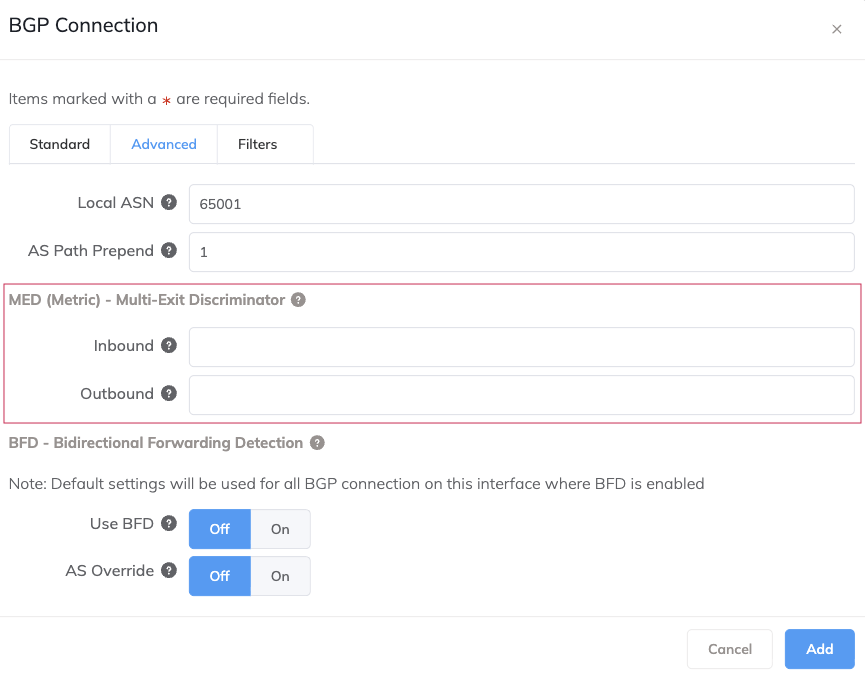
In the Inbound field, specify a 32-bit integer MED metric to apply to all routes received on this BGP connection. Leave blank to use the value received from the BGP neighbor.
-
In the Outbound field, specify a 32-bit integer MED metric to apply to all routes transmitted by this BGP connection.
-
Click Update.
- Click Save.
Using MED with Google Cloud Platform
Google Cloud Platform Cloud Router egress is determined by the first condition that is met:
- All egress traffic is sent to the route with the shortest AS path length.
- If routes have the same AS path lengths, all egress traffic is sent to the route with the lowest MED value (the lowest route metric).
- If routes have the same AS path lengths and MED values (the same route metrics), egress traffic is balanced across all routes using equal-cost multipath (ECMP).
Note
Confirm support for other neighbors with your CSP, along with any specific routing metric influences that might have a higher priority than the MED.