Creating a Cisco SD-WAN MVE Using a Bootstrap Configuration File
This topic describes how to deploy a Cisco SD-WAN MVE using a bootstrap (cloud-init) configuration file. In this method, you build a device template in the Cisco vManage console, generate and download a bootstrap configuration file, then create the MVE in the Megaport Portal and upload that file.
This is a manual deployment method. It is separate from the automated Cloud OnRamp for Multi-Cloud method, in which vManage uses your Megaport Portal account details to make an API call to Megaport and create the interconnect gateway for you. For the automated method, see Creating a Cisco SD-WAN MVE in vManage.
Note
In vManage, a Megaport MVE is called a Cisco interconnect gateway. The terms interconnect gateway and MVE are used interchangeably in this topic.
Basic steps
This section provides an overview of the configuration steps. You configure the device template in vManage, generate the bootstrap file, then upload the file when you create the MVE in the Megaport Portal.
For more information about Cisco SD-WAN, see the Cisco SD-WAN Cloud OnRamp Configuration Guide.
The basic steps are:
- Attach a device to a template
- Configure the device template
- Configure the device
- Generate the bootstrap configuration file
- Provision the MVE in the Megaport Portal
The MVE with Cisco integration requires vManage platform version 20.5 or later. Before you begin, verify the vManage platform version.
To view the vManage platform version
- In the vManage console, click the question mark icon, choose About, and verify the version number.
If your version is earlier than 20.5, upgrade to 20.5 or later.
Attaching a device to a template
Log in to your Cisco vManage console and follow these steps.
To attach a device to a Megaport template
-
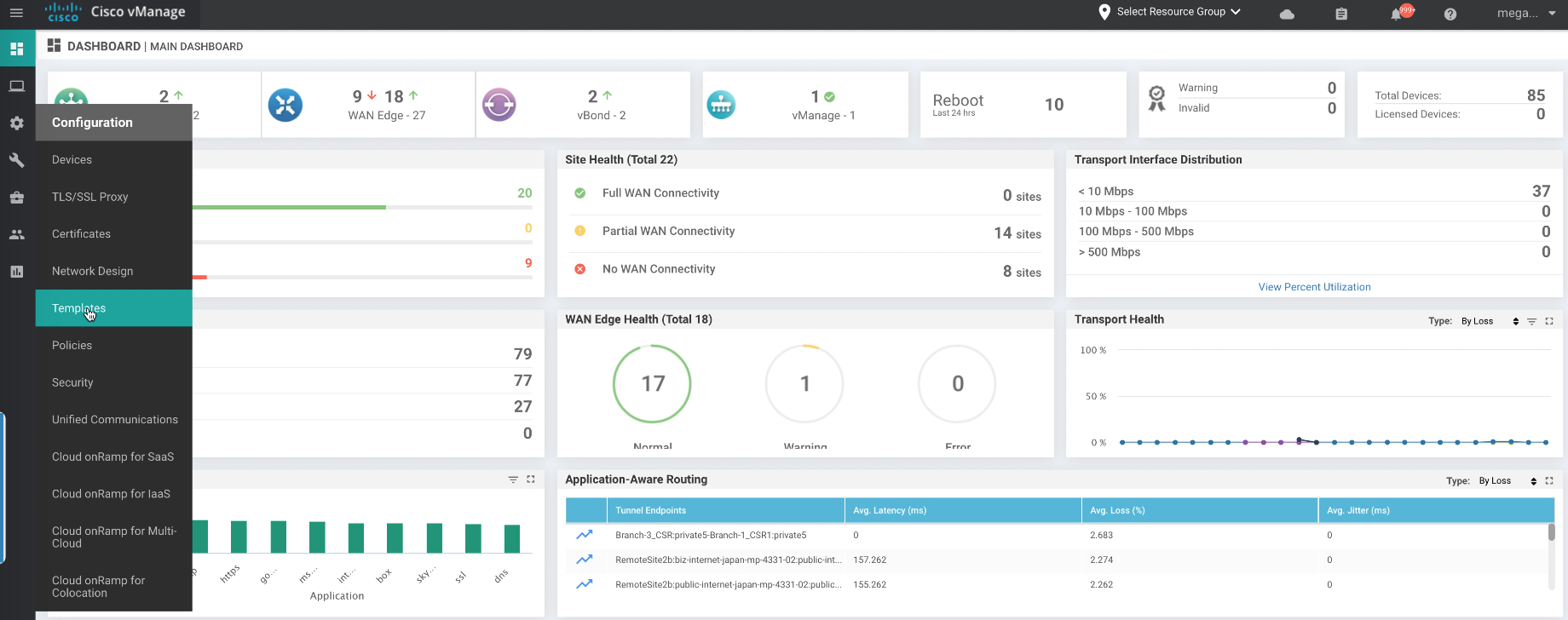
From the Configuration menu, choose Templates.
-
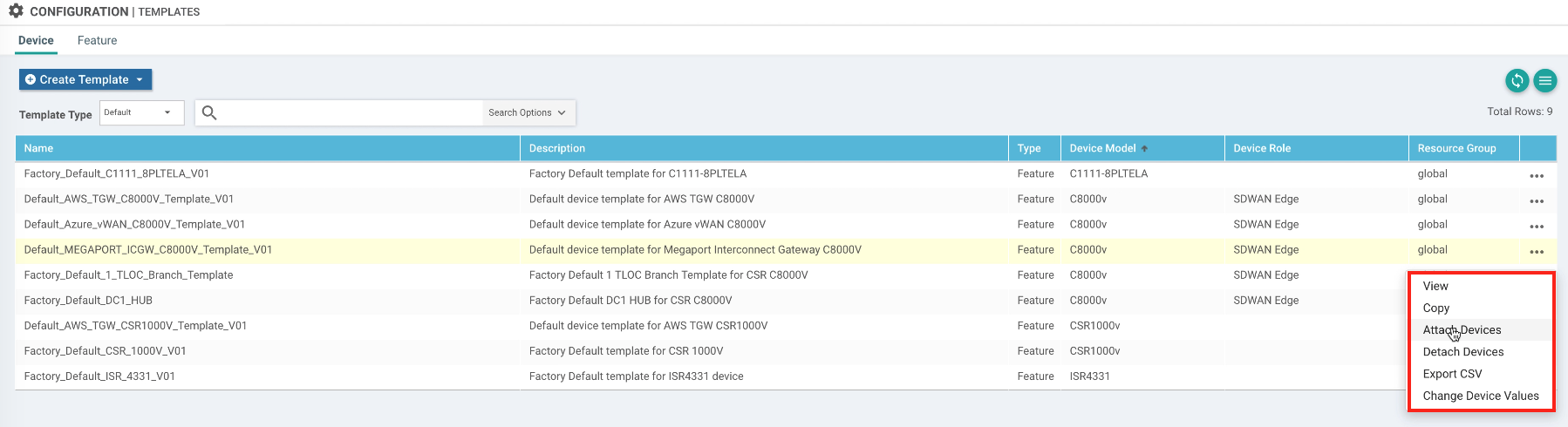
Select Default from the Template Type drop-down menu.
- Select a template.
This example uses the Default_MEGAPORT_ICGW_C8000V_template_V01 template, but you should first create a copy of the default template and then add to or modify the clone, as required. - Click the ellipsis (…).
-
Select Attach Devices.
-
Select a device from the list of available devices.
If no devices are available, use your vSmart account to access the certificates for the devices. - Click the right arrow to move the device to the Selected Devices list then click Attach.
Configuring the device template
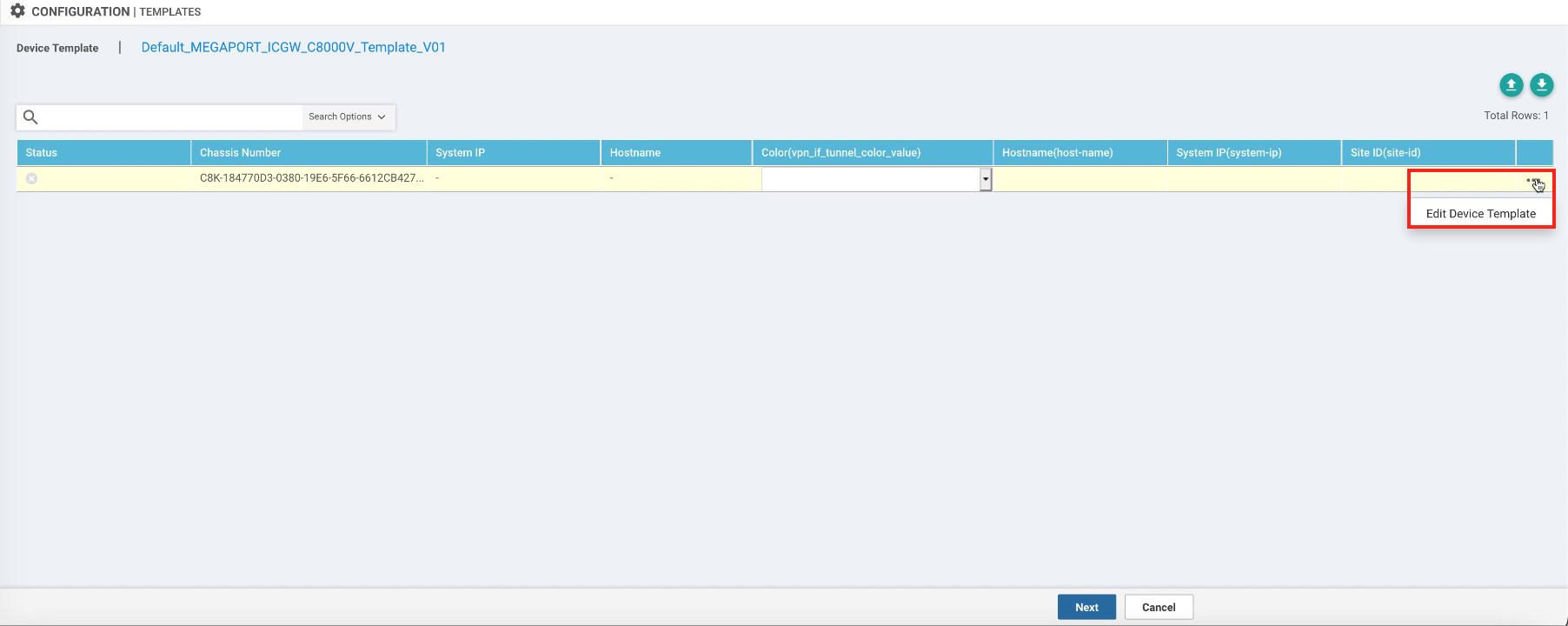
Configure the device template, including the color, system IP, site ID, and hostname. The color is a Cisco SD-WAN attribute that identifies the individual WAN transport tunnel. The color labels the transport, and the router uses that label for policy and path selection.
To configure the device template
-
After the device is attached, click the ellipsis (…) and select Edit Device Template.
-
Select a color from the drop-down list.
A color is a Cisco SD-WAN attribute that identifies the individual WAN transport tunnel. The color can provide restrictions such as VPN and assigns how other branches address the connection. Select the color that best represents the underlying transport. - Enter a System IP address.
Each interconnect gateway/MVE needs a unique System IP within the SD-WAN fabric. For example, 1.1.1.32. The System IP is not a routable IP address, but it must be unique among your edge devices. - Enter a site ID.
Each interconnect gateway/MVE needs a site ID within the SD-WAN fabric. For example, 123132. - Enter a hostname.
Each interconnect gateway/MVE needs a unique hostname within the SD-WAN fabric. For example, mve-atl-eq2. - Click Update.
Configuring the device
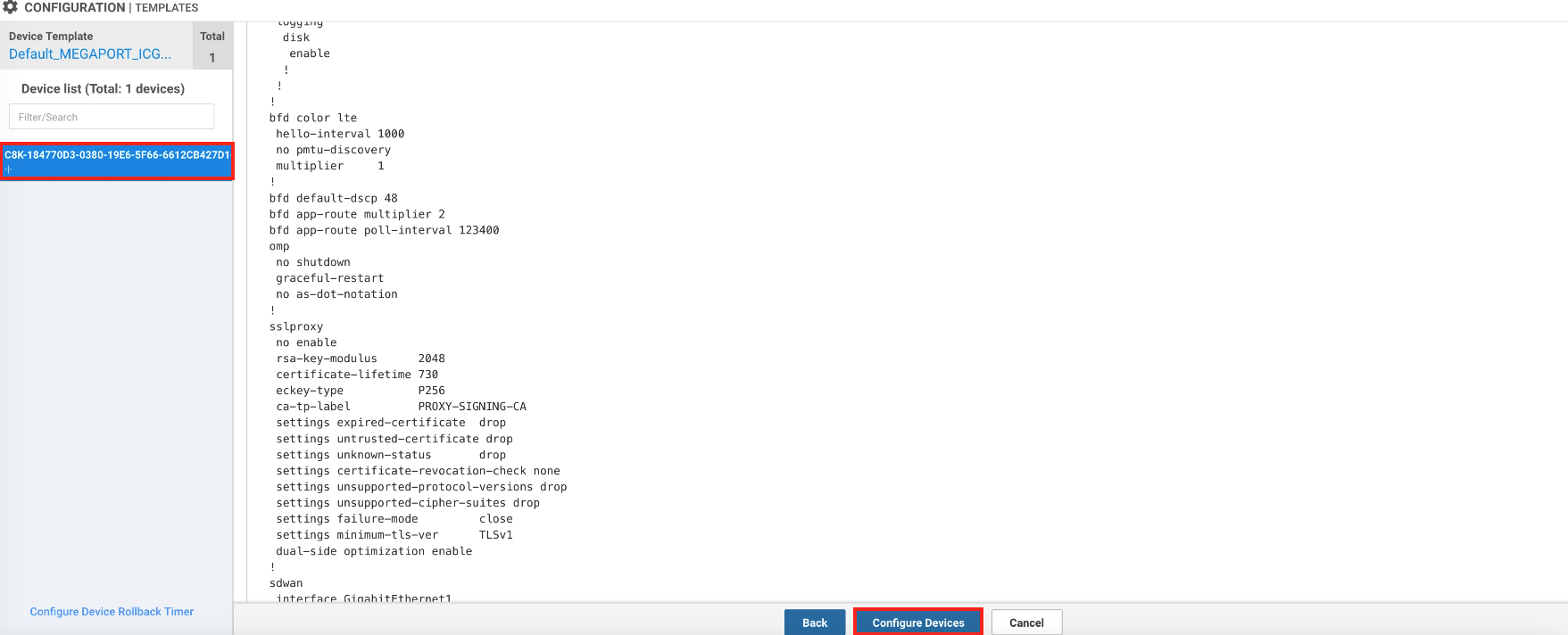
Configure the device pushes the operational configuration to the MVE, including its interfaces, routing, VPNs, and SD-WAN settings.
To configure the device
- Click the device name in the Device List.
-
Click Configure Devices.
Generating the bootstrap configuration file
Important
Keep the template minimal and use the default settings. Do not configure any specific settings, because the purpose of the bootstrap file is onboarding only.
To generate the bootstrap configuration file
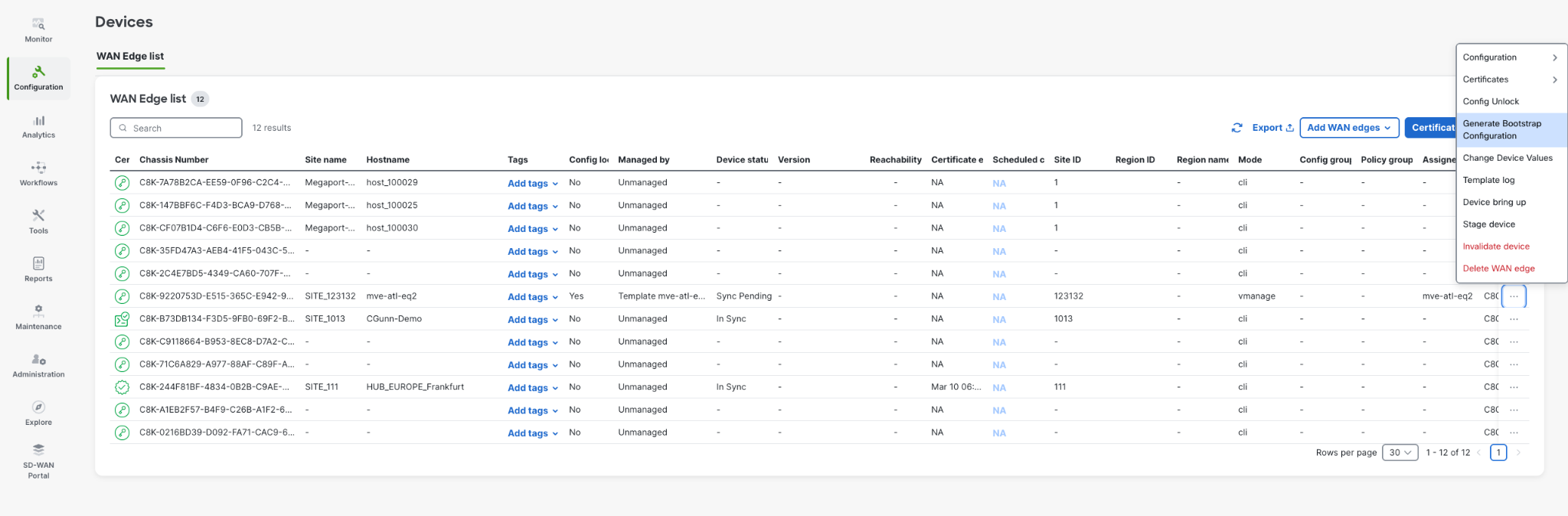
- Select Configuration > Devices and open the WAN Edge list.
-
Click the ellipsis (…) for the device and select Generate Bootstrap Configuration.
-
Click Download to save the bootstrap file.
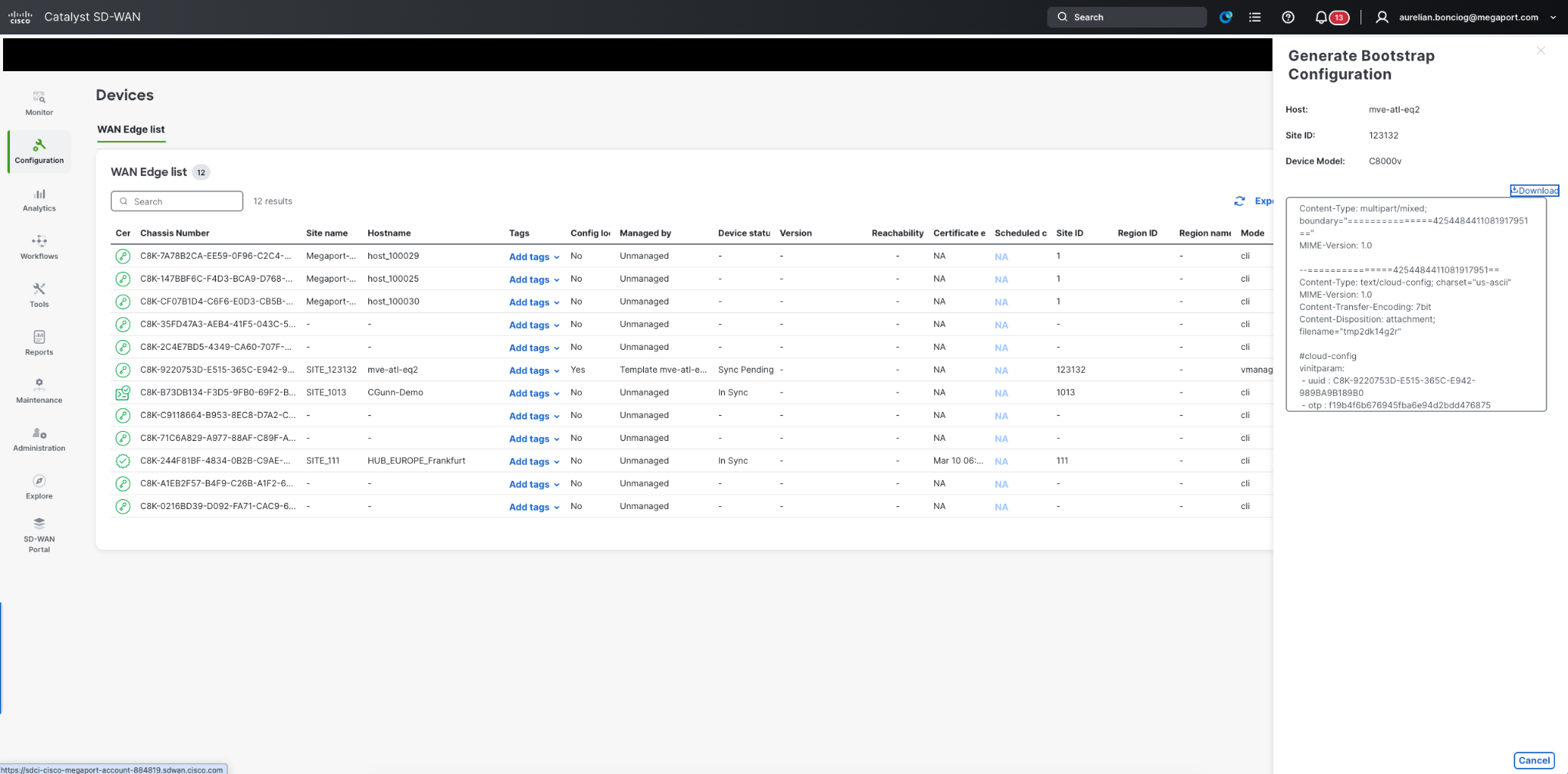
The bootstrap configuration file contains:
- System IP
- Site ID
- Organization name
- vBond information
- Certificates and authentication data
Creating an MVE in the Megaport Portal
After you download the bootstrap file, create the MVE in the Megaport Portal and upload the file as the cloud-init file.
To provision the MVE in the Megaport Portal
- Log in to the Megaport Portal and go to the Services page.
- Click Add Services, then select MVE.
- Select Cisco C8000 and select the software version, then click Next.
- Select the MVE details, including the Location and Size, then click Next.
Three sizes are available (small, medium, and large) to support varying numbers of concurrent connections. For more information, see Planning Your Cisco MVE Deployment. -
Specify the Cisco SD-WAN-specific settings:
-
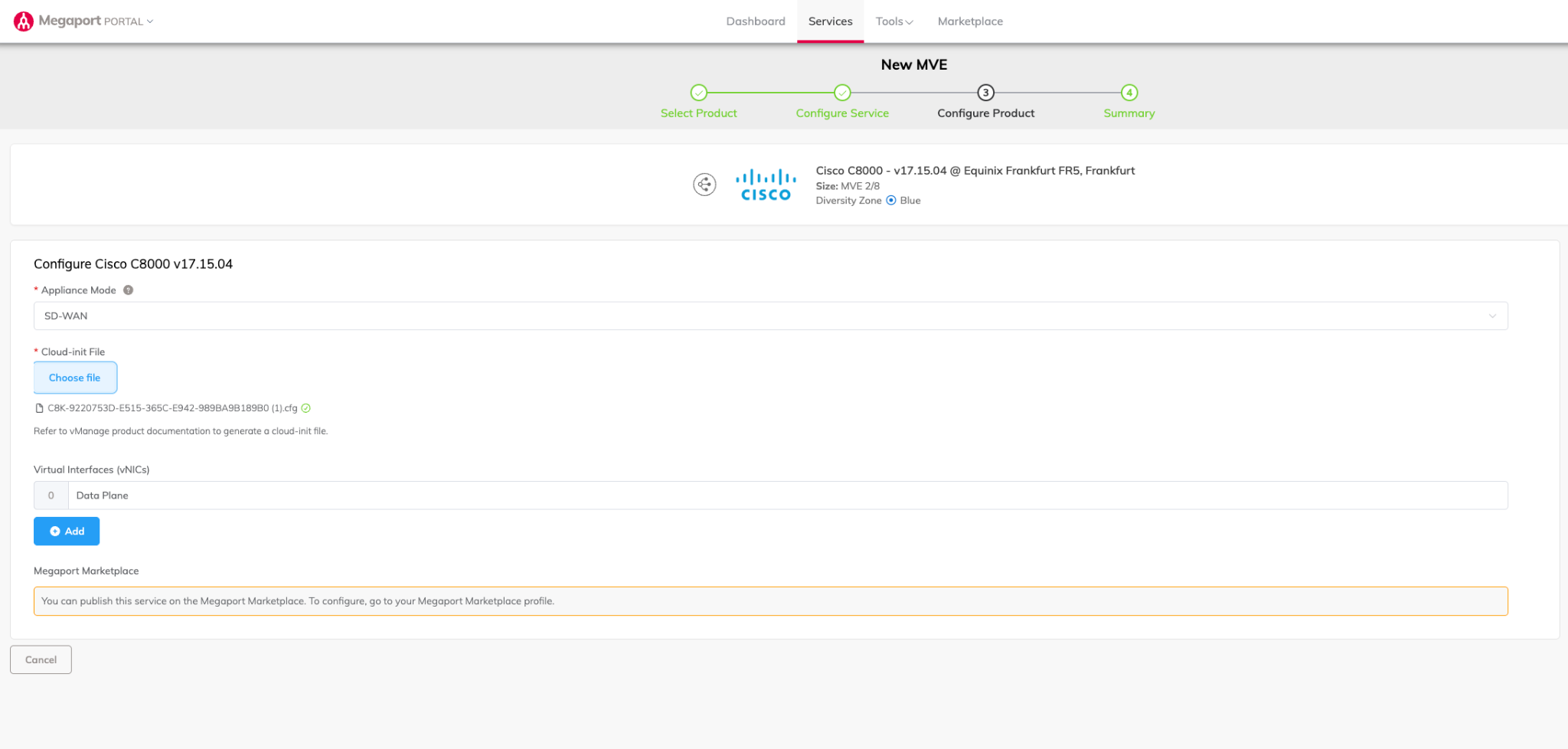
Appliance Mode – Select SD-WAN from the Appliance Mode drop-down list.
-
Cloud-init File – Click Choose file and upload the bootstrap configuration file you downloaded from vManage.
-
-
Complete the provisioning steps to create the MVE.
Ordering MVE provisions the appliance and assigns IP addresses from the Megaport SDN. After deployment, the MVE:
- Boots up
- Uses the bootstrap configuration
- Establishes a connection to vBond
- Joins the SD-WAN fabric
vManage then recognizes the device and pushes the full configuration.
Next steps
Once the MVE is provisioned with an Active status, the next steps are to:
- Configure WAN (VPN 0) if it is not template-driven.
- Configure BGP if required.
- Connect a VXC to a Cloud Service Provider (CSP), a local port, or a third-party network. You can optionally connect a physical Port to the MVE through a private VXC or connect to a service provider in the Megaport Marketplace. For more information, see Creating a VXC.
- Verify the control connections.