Managing Contract Terms in Bulk
This topic describes how to manage the contract terms for multiple services in bulk.
You can re-term multiple services approaching term expiry or lock in longer-term discounts across a group of services.
Eligible services
You can re-term any service or connection type except the following:
- Locked services – Services that have been locked by you or a Company Admin.
- Admin-locked services – Services locked by Megaport support.
- Non-live services – Services that are not yet fully provisioned.
These services appear grayed out in the Term Management list and cannot be selected.
Filtering the services list
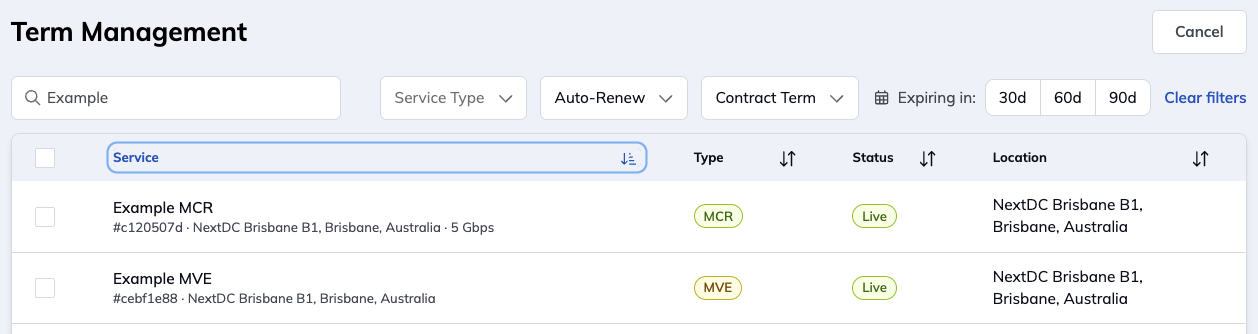
You can filter the list of services on the Term Management page using these filters:
- Filter services – Filter by service name.
- Service Type – Filter by Megaport products, such as VXCs and MCRs.
- Auto-Renew – Filter by automatic term renewal status (on or off).
- Contract Term – Filter by the current contract term length of services: month-to-month, 12, 24, 36, 48, or 60 months.
- Expiring in – Filter for services with terms expiring within 30, 60, or 90 days.
Updating contract terms
You can update the contract terms of one or more services.
Note
The Portal offers only the contract terms that are available for every selected service. You can apply a term equal to or longer than a service’s current term, but you cannot shorten it. If a selected service already has a longer term, the Portal grays out any shorter terms for the whole selection.
To update contract terms for multiple services
-
In the Megaport Portal, go to Billing > Term Management.
-
(Optional) Use the filters to narrow the list of services.
-
Select the check box next to each service you want to re-term.
Note
Ineligible services appear in the list but their check boxes are grayed out. Mouse over a grayed-out check box to see why the service cannot be re-termed.
-
Click Next.
-
Select the new contract term.
The Portal offers only the contract terms available for every selected service. You can apply a term equal to or longer than a service’s current term, but you cannot shorten it. If a selected service already has a longer term, the Portal grays out any shorter terms for the whole selection. Mouse over a grayed-out term to see why. Review each service’s new monthly rate.
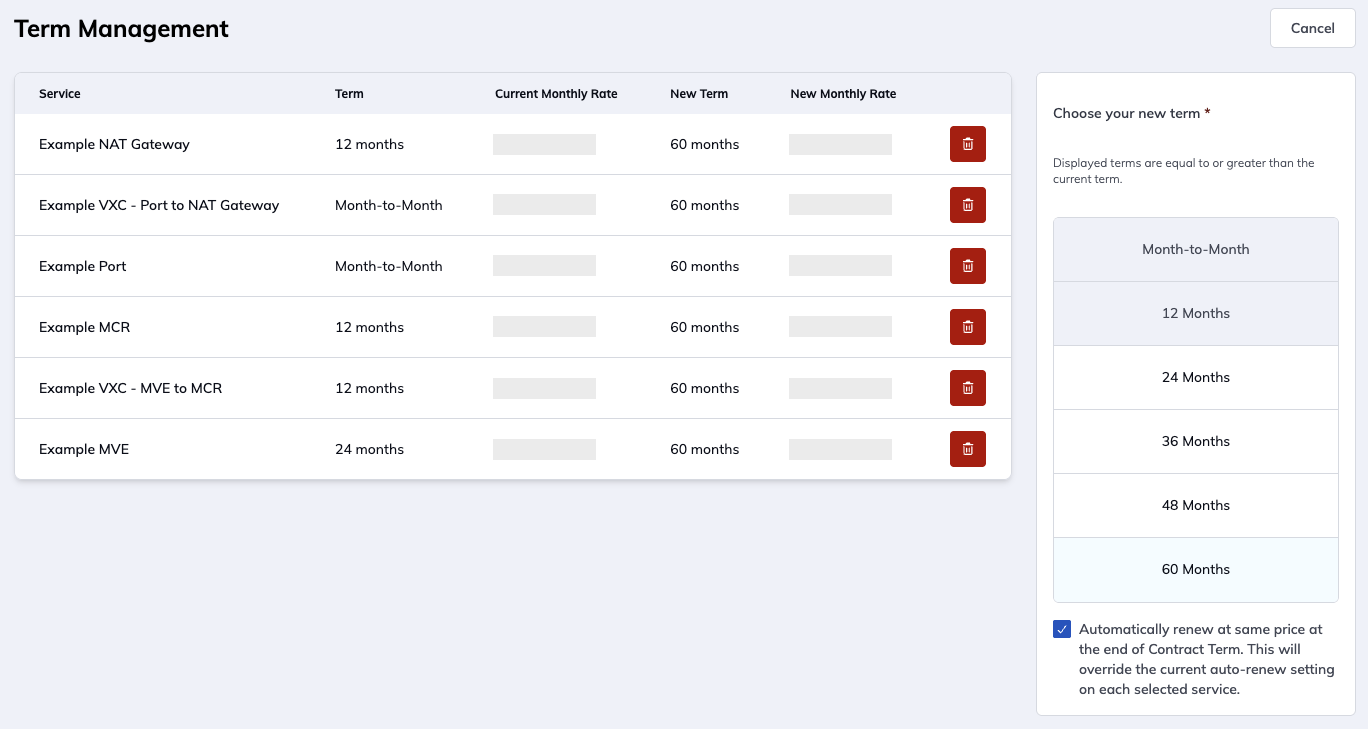
To remove a service from the list, click the Trash icon at the end of the row.
-
(Optional) To automatically renew all selected services at the same discounted price and term length at the end of the contract term, enable the automatic renewal option. This overrides the current Minimum Term Renewal setting on each selected service. If you don’t enable this option, services continue on a month-to-month basis at the end of the term.
-
Click Next.
-
Review the pricing summary for each service.
-
Review the terms and conditions, then select the I agree to the terms and conditions check box.
-
Click Start New Contract Term.
The Portal processes each service independently. The results page shows the outcome for each service:
- Updated – The term change was applied.
- Failed – The term change was not applied. A reason is shown next to the service name.
- Pending Approval – (Managed accounts only) The request is waiting for your partner to approve it. The new term takes effect after the partner approves.
-
Click Done to return to the Services page.
Auto-renewing services
When re-terming multiple services on the Term Management page, the Automatic Renewal option is applied to all selected services. If enabled, each service automatically renews for the same term at the end of the new contract term.
You can change the automatic renewal setting for individual services at any time on the configuration page for the service. For more information, see Managing Minimum Term Renewal.