> ## Documentation Index
> Fetch the complete documentation index at: https://docs.megaport.com/llms.txt
> Use this file to discover all available pages before exploring further.

# Connecting with Megaport

> This help topic covers how to connect to a Megaport Marketplace provider.

export const AvailabilityList = ({data}) => {
  if (!Array.isArray(data.countries) || data.countries.length === 0) {
    return <></>;
  }
  return <div className="frame-mode-page marketplace-template-region-location">
      <h2 id="availability">Availability</h2>
      <h3 id="enabled-regions">{data.companyName} Enabled Regions</h3>
      <p>
        Customers can interconnect to {data.companyName} via Megaport across all
        enabled regions listed below.
      </p>
      {data.countries.map(country => <p key={country.country} className="frame-mode-page low-margin">
          <strong>{country.country}:</strong> {country.cities.join(', ')}
        </p>)}
    </div>;
};

export const MarketplaceTemplate = ({uri}) => {
  const errorPrefix = '\x1b[31;1;4mERROR\x1b[0m: MarketplaceTemplate -';
  if (!uri) {
    console.error(`${errorPrefix} \`uri\` is required — rendering an empty string instead`);
    return <></>;
  }
  const body = companyDetails => <div className="frame-mode-page-outer">
      <div className="frame-mode-page-inner">
        <Columns cols={1}>
          <div className="marketplace-template">
            <img id="company-logo" src={companyDetails.logoUrl} alt="Company logo" />

            <p>
              Marketplace Profile: <strong>{companyDetails.companyName}</strong>
            </p>

            <p>
              <a id="company-website" href={companyDetails.web} target="_blank" rel="noopener noreferrer">
                {companyDetails.web}
                <span className="sr-only"> (opens in a new tab)</span>
              </a>
            </p>
          </div>
          <h1>Connecting to {companyDetails.companyName} with Megaport</h1>
          <p>
            Megaport makes it easy to provision fast, secure, and private
            connections between your data center, cloud and edge locations to{' '}
            {companyDetails.companyName}. We provide dedicated connectivity to{' '}
            {companyDetails.companyName} through our global software-defined
            network (SDN) from hundreds of locations worldwide.{' '}
          </p>
          <p>
            Through private connectivity that bypasses the public internet,
            enterprises benefit from:{' '}
          </p>
          <ul>
            <li>Higher network performance, consistency, and predictability</li>
            <li>Streamlined and accelerated workloads and data migration</li>
            <li>Improved data and operational security</li>
            <li>
              Interconnectivity opportunities to a vast ecosystem of partners
              and customers accessible via the Megaport Marketplace
            </li>
          </ul>
          <p>
            Megaport provides a powerful solution for enterprises to
            interconnect their IT environments to {companyDetails.companyName}{' '}
            across a mixture of on-premises branch locations, co-location,
            private and public cloud.
          </p>
          <p>
            Enterprises have the control and ability to enable multiple VXCs to{' '}
            {companyDetails.companyName} from a single location or multiple for
            added resilience, providing the scalability and agility required in
            response to evolving business needs.{' '}
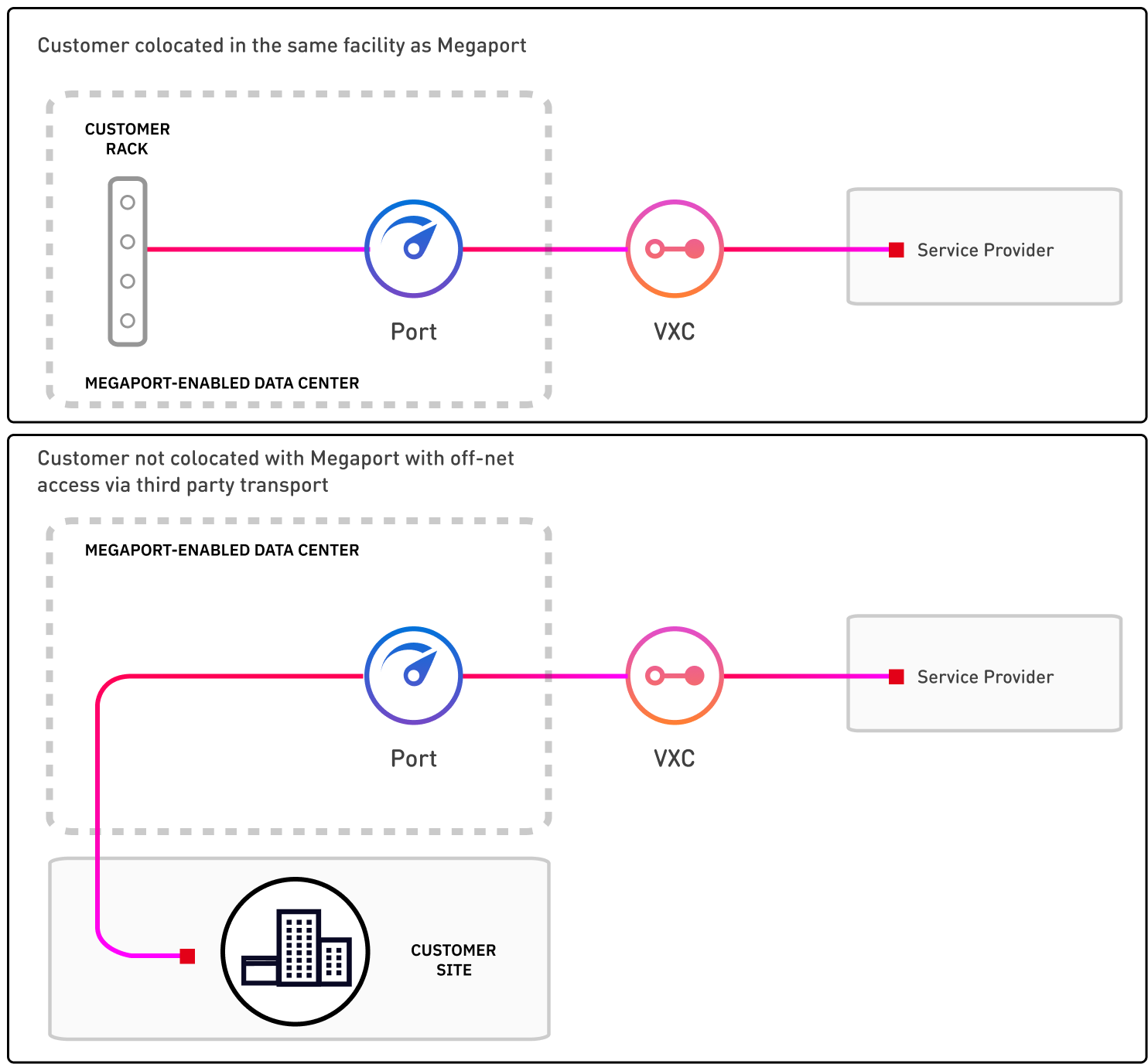
          </p>
          <p>
            <img alt={`This image shows two diagrams. The first on the left side shows ${companyDetails.companyName} connecting via a VXC to a port in a Megaport-enabled data center. The port is connected to the customer, which is co-located in the same data center. The second diagram shows ${companyDetails.companyName} connecting to a port via VXC in a Megaport-enabled data center. The port is connected to the customer, which is not co-located. The port and customer are connected using third-party transport.`} src="/images/overview.png" width={800} />{' '}
          </p>
          <h2 id="how-it-works">How it works</h2>
          <p>
            {companyDetails.companyName} has established physical network
            connections at several {companyDetails.companyName} DCs (PoPs)
            around the world. These PoPs reside within facilities operated by
            co-located data centers where Megaport is enabled.{' '}
          </p>
          <p>
            Physical fiber connections (NNIs) between Megaport and{' '}
            {companyDetails.companyName} are established at each location. These
            physical connections are maintained between{' '}
            {companyDetails.companyName} and Megaport.
          </p>
          <p>
            You can purchase services onto the Megaport network either via Ports
            (DC to Cloud), MCR (Cloud to Cloud), or MVE (Branch to Cloud).
            Through your Megaport account, VXCs can be ordered in increments of
            1 Mbps speeds up to the maximum capacity available for your
            location.{' '}
          </p>
          <AvailabilityList data={companyDetails} />
          <h2 id="creating-a-connection">Creating a connection</h2>
          <p>
            You can create a connection from a Megaport service in one of the
            following ways:
          </p>
          <ul>
            <li>
              <p>
                <strong>Direct connection</strong> – If{' '}
                {companyDetails.companyName} is configured to accept direct
                connections, you can request a connection to{' '}
                {companyDetails.companyName} directly from the Megaport
                Marketplace based on your requirements.
              </p>
            </li>
            <li>
              <p>
                <strong>Using a service key</strong> – If a service key is
                required, {companyDetails.companyName} will create and provide
                it for you. Use the service key to connect to{' '}
                {companyDetails.companyName} in the Megaport Portal. The service
                key is unique to your business and includes{' '}
                {companyDetails.companyName}’s VLAN ID, speed, and peering
                location.{' '}
              </p>
              <Note>
                <p>
                  Contact {companyDetails.companyName} using the{' '}
                  <strong>Contact</strong> button on their company profile in
                  the Megaport Marketplace to confirm if a direct connection
                  from the Megaport Marketplace or a service key is required.
                </p>
              </Note>
            </li>
          </ul>
          <p>
            After contacting {companyDetails.companyName}, select one of the
            options for detailed instructions:
          </p>
          <AccordionGroup>
            <Accordion title="Creating a direct connection">
              <p>
                If a direct connection is allowed by{' '}
                {companyDetails.companyName}, you can start a service request to{' '}
                {companyDetails.companyName} from the Megaport Marketplace.
              </p>

              <p>
                When you start the connection request,{' '}
                {companyDetails.companyName} is notified of the request by email
                and can accept or deny the request.
              </p>

              <p>
                <strong>
                  To create a connection request to {companyDetails.companyName}
                </strong>
              </p>

              <ol>
                <li>
                  In the{' '}
                  <a href="https://portal.megaport.com" target="_blank" rel="noopener noreferrer">
                    Megaport Portal
                    <span className="sr-only"> (opens in a new tab)</span>
                  </a>
                  , go to the <strong>Services</strong> page.
                </li>

                <li>
                  Select the service you want to use.
                  <p>If you haven’t already created a service, see:</p>
                  <ul>
                    <li>
                      <a href="/connections/creating-port/">Creating a Port</a>
                    </li>
                    <li>
                      <a href="/mcr/creating-mcr/">Creating an MCR</a>
                    </li>
                    <li>
                      <a href="/mve/">MVE Overview</a>
                    </li>
                  </ul>
                </li>

                <li>
                  Click <strong>+Connection</strong> then click{' '}
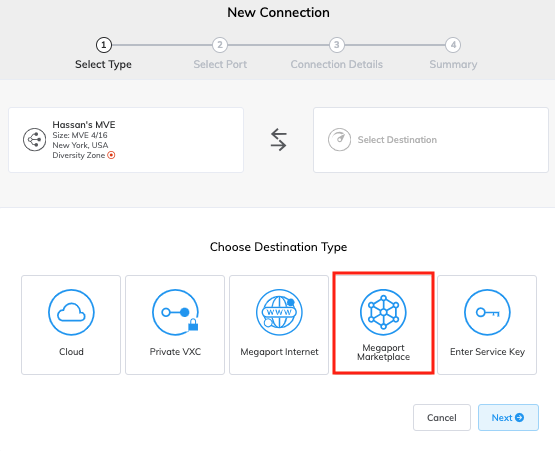
                  <strong>Megaport Marketplace</strong> as the destination type.
                  <img src="/images/marketplace/marketplace-new-connection.png" alt="Megaport Marketplace" className="mega-image-style shadow" />
                </li>

                <li>
                  Search for and then select {companyDetails.companyName}.
                  <p>
                    The destination services for {companyDetails.companyName}{' '}
                    appear.
                  </p>
                </li>

                <li>
                  Select a destination service.
                  <p>
                    Typically, you would select the service closest to your
                    Port, MCR, or MVE.
                  </p>
                </li>

                <li>
                  Click <strong>Next</strong>.
                  <img src="/images/marketplace/marketplace-connection-details.png" alt="Connection details" className="mega-image-style shadow" />
                </li>

                <li>
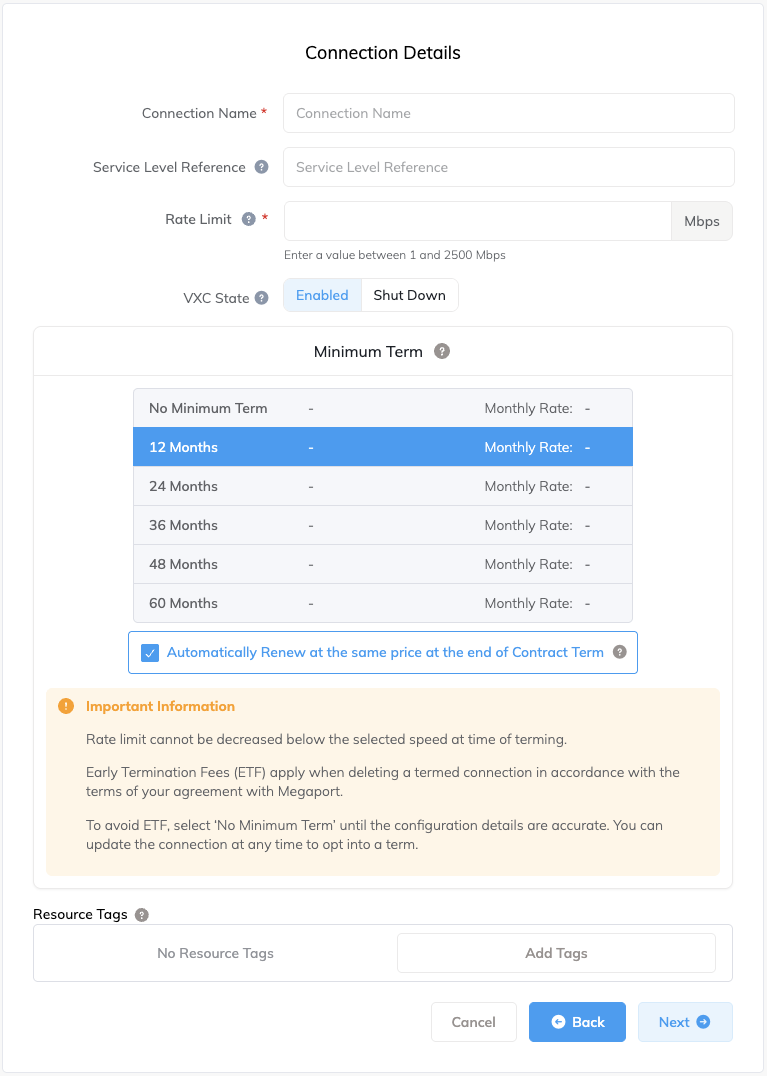
                  Specify the connection details:
                  <ul>
                    <li>
                      <strong>Connection Name</strong> - The name of your VXC to
                      be shown in the{' '}
                      <a href="https://portal.megaport.com" target="_blank" rel="noopener noreferrer">
                        Megaport Portal
                        <span className="sr-only"> (opens in a new tab)</span>
                      </a>
                      .
                    </li>
                    <li>
                      <strong>Service Level Reference</strong> (optional) -
                      Enter the purchase order number specified when registering
                      the billing market.
                    </li>
                    <li>
                      <strong>Rate Limit</strong> - The speed of your connection
                      in Mbps up to the maximum limit defined by the key.
                    </li>
                    <li>
                      <strong>Resource Tags</strong> - Use resource tags to add
                      your own identifier to the service.
                    </li>
                    <li>
                      <p>
                        <strong>VXC State</strong> - Select{' '}
                        <strong>Enabled</strong> or <strong>Shut Down</strong>{' '}
                        to define the initial state of the connection. For more
                        information, see{' '}
                        <a href="/connections/shut-down-vxc/">
                          Shutting Down a VXC for Failover Testing
                        </a>
                        .
                      </p>
                      <div className="mega-note">
                        <strong>Note:</strong> If you select{' '}
                        <strong>Shut Down</strong>, traffic will not flow
                        through this service and it will behave as if it was
                        down on the Megaport network. Billing for this service
                        will remain active and you will still be charged for
                        this connection.
                      </div>
                    </li>
                    <li>
                      <strong>Preferred A-End VLAN</strong> (optional) - Specify
                      an unused VLAN ID for this connection. This must be a
                      unique VLAN ID on this port and can range from 2 to 4093.
                    </li>
                    <li>
                      <strong>Minimum Term</strong> - Select No Minimum Term, 12
                      Months, 24 Months, 36, 48, or 60 Months. Longer terms
                      result in a lower monthly rate. <em>12 Months</em> is
                      selected by default.
                      <p>
                        Enable the
                        <a href="/portal-admin/auto-renew/#auto-renew">
                          Minimum Term Renewal
                        </a>
                        option for services with a 12, 24, 36, 48, or 60-month
                        term to automatically renew the contract at the same
                        discounted price and term length at the end of the
                        contract.
                      </p>
                      <p>
                        If you don't renew the contract, at the end of the term,
                        the contract will automatically roll over to a
                        month-to-month contract for the following billing
                        period, at the same price, without term discounts.
                      </p>
                      <p>
                        Take note of the information on the screen to avoid
                        early termination fees (ETF). For more information, see{' '}
                        <a href="/finance/vxc-pricing/">
                          VXC Pricing and Contract Terms
                        </a>{' '}
                        and{' '}
                        <a href="/finance/billing-details/">
                          VXC, Megaport Internet, and IX Billing
                        </a>
                        .
                      </p>
                    </li>
                  </ul>
                </li>
                <li>
                  Click <strong>Next</strong>.
                </li>
                <li>
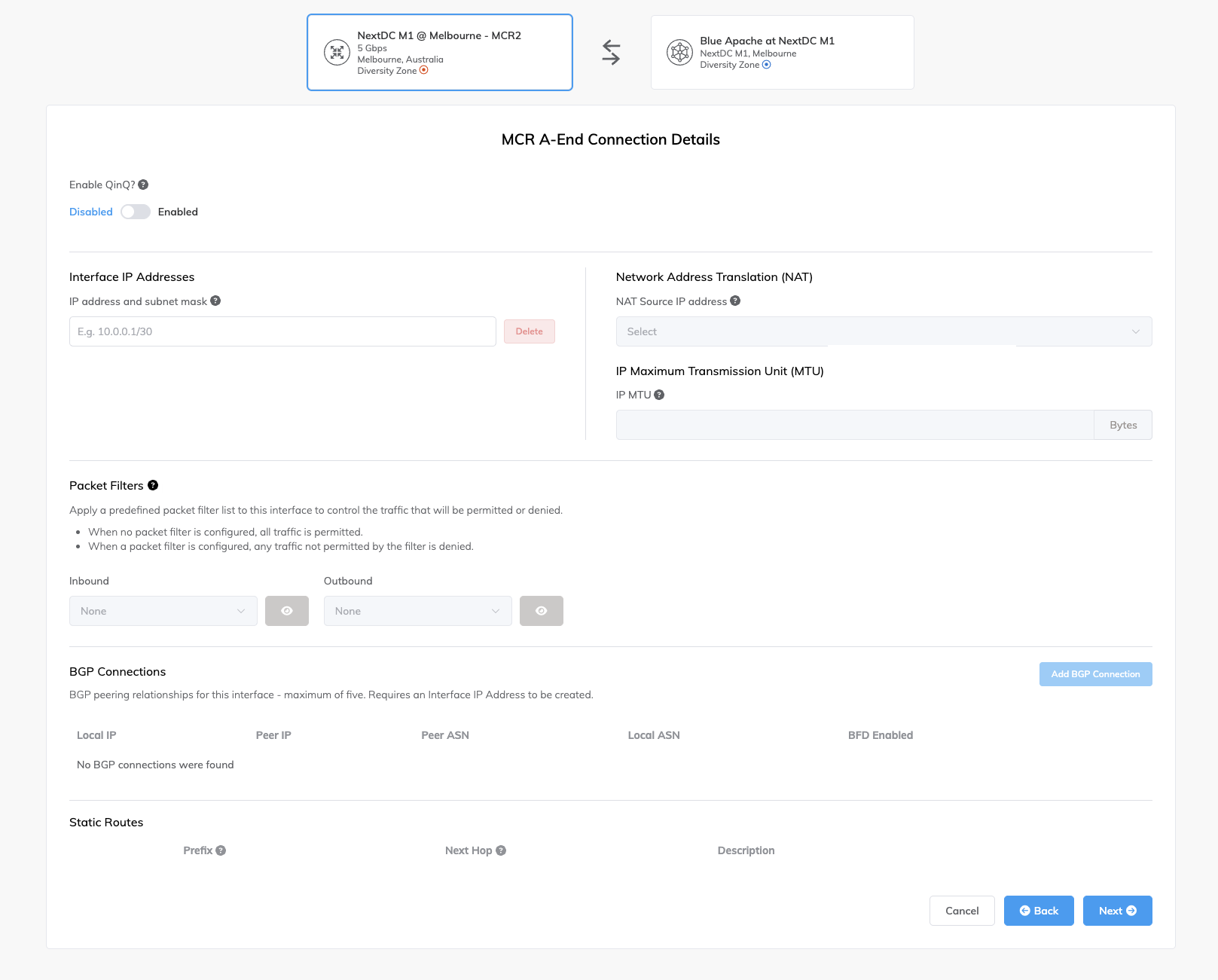
                  If you are connecting from an MCR, review and edit the A-End
                  Connection Details.
                  <p>
                    Use this page to enable Q-in-Q, IP address and subnet mask,
                    Network Address Translation, and BGP connections. For more
                    information, see{' '}
                    <a href="/mcr/mcr-vxc/">Creating an MCR VXC</a> and{' '}
                    <a href="/mcr/configuring-mcr/">Configuring an MCR</a>.
                  </p>
                  <img src="/images/marketplace/marketplace-connection-aend.png" alt="Connection details" className="mega-image-style shadow" />
                </li>

                <li>
                  Click <strong>Next</strong>.
                </li>
                <li>
                  Click <strong>Add VXC</strong>.
                </li>
                <li>
                  Click <strong>Review Order</strong>.
                </li>
                <li>
                  Review the Order Services agreement and click{' '}
                  <strong>Order Now</strong>.
                </li>
              </ol>

              <p>
                After you submit the connection request, Megaport sends email
                notifications to both you and {companyDetails.companyName}. For
                more information about the notification and approval process,
                see{' '}
                <a href="/marketplace/notifications/">
                  Megaport Marketplace Notifications
                </a>
                .
              </p>
            </Accordion>
            <Accordion title="Creating a connection using a service key">
              <p>
                After you get your unique service key from{' '}
                {companyDetails.companyName}, create your connection to{' '}
                {companyDetails.companyName} in the Megaport Portal.
              </p>
              <Note>
                <strong>Note:</strong> When you use the service key created by{' '}
                {companyDetails.companyName}, you are responsible for any VXC
                charges.
              </Note>
              <p>
                <strong>
                  To create a connection to {companyDetails.companyName}
                </strong>
              </p>
              <ol>
                <li>
                  In the{' '}
                  <a href="https://portal.megaport.com" target="_blank" rel="noopener noreferrer">
                    Megaport Portal
                    <span className="sr-only"> (opens in a new tab)</span>
                  </a>
                  , go to the <strong>Services</strong> page.
                </li>

                <li>
                  Select the service you want to use.
                  <p>If you haven’t already created a service, see:</p>
                  <ul>
                    <li>
                      <a href="/connections/creating-port/">Creating a Port</a>
                    </li>
                    <li>
                      <a href="/mcr/creating-mcr/">Creating an MCR</a>
                    </li>
                    <li>
                      <a href="/mve/">MVE Overview</a>
                    </li>
                  </ul>
                </li>

                <li>
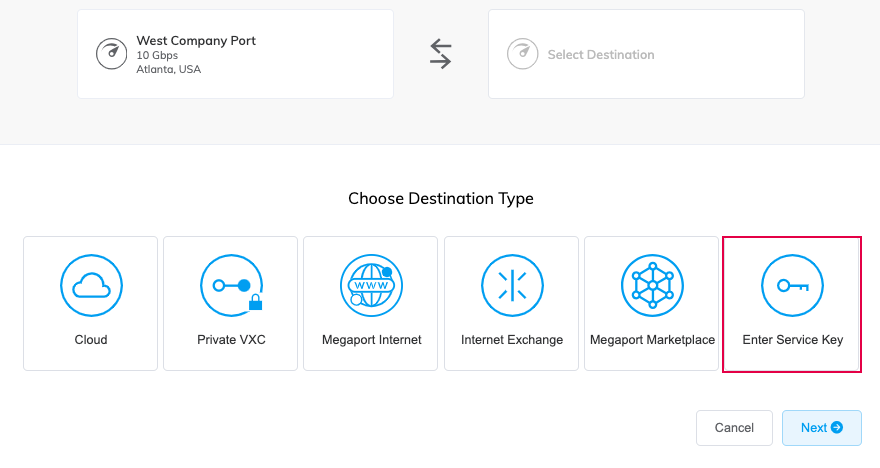
                  Click <strong>+Connection</strong> then click{' '}
                  <strong>Enter Service Key</strong>.
                  <img src="/images/service-key-enter.png" alt="Enter Service Key" className="mega-image-style shadow" width="850" />
                </li>

                <li>
                  Enter the service key provided by {companyDetails.companyName}{' '}
                  in the <strong>Megaport Service Key ID</strong> field.
                  <p>
                    Megaport validates the key and displays basic information
                    about the key.
                  </p>
                </li>

                <li>
                  Click <strong>Next</strong>.
                </li>

                <li>
                  Specify the connection details:
                  <ul>
                    <li>
                      <strong>Connection Name</strong> - The name of your VXC to
                      be shown in the{' '}
                      <a href="https://portal.megaport.com" target="_blank" rel="noopener noreferrer">
                        Megaport Portal
                        <span className="sr-only"> (opens in a new tab)</span>
                      </a>
                      .
                    </li>

                    <li>
                      <strong>Service Level Reference</strong> (optional) -
                      Specify a unique identifying number for the VXC to be used
                      for billing purposes, such as a cost center number or a
                      unique customer ID. The service level reference number
                      appears for each service under the Product section of the
                      invoice. You can also edit this field for an existing
                      service.
                    </li>

                    <li>
                      <strong>Rate Limit</strong> - The speed of your connection
                      in Mbps, up to the maximum limit defined by the key.
                    </li>

                    <li>
                      <strong>VXC State</strong> - Select{' '}
                      <strong>Enabled</strong> or <strong>Shut Down</strong> to
                      define the initial state of the connection. For more
                      information, see{' '}
                      <a href="/connections/shut-down-vxc/">
                        Shutting Down a VXC for Failover Testing
                      </a>
                      .
                      <Note>
                        <strong>Note:</strong> If you select{' '}
                        <strong>Shut Down</strong>, traffic will not flow
                        through this service and it will behave as if it was
                        down on the Megaport network. Billing for this service
                        will remain active and you will still be charged for
                        this connection.
                      </Note>
                    </li>

                    <li>
                      <strong>A-End vNIC</strong> - You might be asked to
                      specify an A-End vNIC. Select an available vNIC from the
                      drop-down list.
                    </li>

                    <li>
                      <strong>Preferred A-End VLAN</strong> (optional) - Specify
                      an unused VLAN ID for this connection. This must be a
                      unique VLAN ID on this Port and can range from 2 to 4093.
                      If you specify a VLAN ID that is already in use, the
                      system displays the next available VLAN number. The VLAN
                      ID must be unique to proceed with the order. If you don't
                      specify a value, Megaport will assign one.
                      <p>
                        The <strong>B-End VLAN</strong> for the provider-side
                        termination will be automatically populated based on the
                        service key.
                      </p>
                    </li>

                    <li>
                      <strong>Minimum Term</strong> - Select No Minimum Term, 12
                      Months, 24 Months, 36 Months, 48 Months, or 60 Months.
                      Longer terms result in a lower monthly rate.{' '}
                      <em>12 Months</em> is selected by default.
                      <p>
                        Enable the
                        <a href="/portal-admin/auto-renew/#auto-renew">
                          Minimum Term Renewal
                        </a>
                        option for services with a 12, 24, 36, 48, or 60-month
                        term to automatically renew the contract at the same
                        discounted price and term length at the end of the
                        contract.
                      </p>
                      <p>
                        If you don't renew the contract, at the end of the term,
                        the contract will automatically roll over to a
                        month-to-month contract for the following billing
                        period, at the same price, without term discounts.
                      </p>
                      <p>
                        Take note of the information on the screen to avoid
                        early termination fees (ETF). For more information, see{' '}
                        <a href="/finance/vxc-pricing/">
                          VXC Pricing and Contract Terms
                        </a>{' '}
                        and{' '}
                        <a href="/finance/billing-details/">
                          VXC, Megaport Internet, and IX Billing
                        </a>
                        .
                      </p>
                    </li>
                  </ul>
                </li>

                <li>
                  Click <strong>Next</strong>.
                  <p>
                    The summary page appears that includes the monthly cost.
                  </p>
                </li>

                <li>
                  Review the summary and click <strong>Create</strong> to
                  confirm the connection order.
                </li>
              </ol>
            </Accordion>
          </AccordionGroup>
          <p>
            Once you have established the connection, you can start
            collaborating with {companyDetails.companyName}.
          </p>
          <h3 id="changes-to-an-existing-connection">
            Changes to an existing connection
          </h3>
          <p>
            You can make changes to an existing {companyDetails.companyName}{' '}
            connection from the connection details page. To make changes, follow
            the steps below.
          </p>
          <ol>
            <li>
              <p>
                From the <strong>Services</strong> page, select your existing{' '}
                {companyDetails.companyName} connection.
              </p>
            </li>
            <li>
              <p>
                In the connection details page, click <strong>Edit</strong>.
              </p>
            </li>
            <li>
              <p>
                Update your connection details and click <strong>Save</strong>.
              </p>
            </li>
          </ol>
          <h3 id="deleting-a-connection">Deleting a connection</h3>
          <p>
            If you no longer require a {companyDetails.companyName} connection,
            you can delete it. To delete a connection, follow the steps below.
          </p>
          <ol>
            <li>
              <p>
                From the <strong>Services</strong> page, select the{' '}
                {companyDetails.companyName} connection you want to delete.
              </p>
            </li>
            <li>
              <p>
                In the connection details page, click <strong>Delete</strong>
                .{' '}
              </p>
            </li>
            <li>
              <p>Confirm that you want to delete the connection. </p>
            </li>
          </ol>
          <p>
            When a connection is deleted, it becomes inactive. You will not be
            charged for the connection after it is deleted.{' '}
          </p>
        </Columns>
      </div>
    </div>;
  const renderError = detail => <div className="frame-mode-page-outer">
      <div className="frame-mode-page-inner">
        <Columns cols={1}>
          <p>This page is not meant to be accessed directly.</p>
          <p>{detail}</p>
          <p>To view Megaport Marketplace provider documentation:</p>
          <ol>
            <li>
              Visit the{' '}
              <a href="https://portal.megaport.com/marketplace" target="_blank" rel="noopener noreferrer">
                Megaport Marketplace
                <span className="sr-only"> (opens in a new tab)</span>
              </a>{' '}
              in the Megaport Portal.
            </li>
            <li>Search for and select a provider.</li>
            <li>
              Click the <strong>Documentation</strong> link on the provider
              profile.
            </li>
          </ol>
        </Columns>
      </div>
    </div>;
  let searchParams;
  try {
    searchParams = new URLSearchParams(uri.search);
  } catch (_e) {
    return renderError('The page URL is not in the expected format.');
  }
  if (!searchParams.has('data')) {
    return renderError('The URL does not contain the required data about the Megaport Marketplace provider.');
  }
  const base64Data = searchParams.get('data');
  let jsonData;
  try {
    jsonData = JSON.parse(atob(base64Data));
  } catch (_e) {
    return renderError('The Megaport Marketplace provider data in the URL could not be read.');
  }
  const companyInfo = {
    companyName: jsonData.companyName,
    web: jsonData.web,
    countries: jsonData.countries,
    logoUrl: jsonData.logoUrl
  };
  return <>{body(companyInfo)}</>;
};

<MarketplaceTemplate uri={typeof window !== 'undefined' ? window.location : null} />